Rabu, 20 Januari 2016

Gigabyte P34W v3

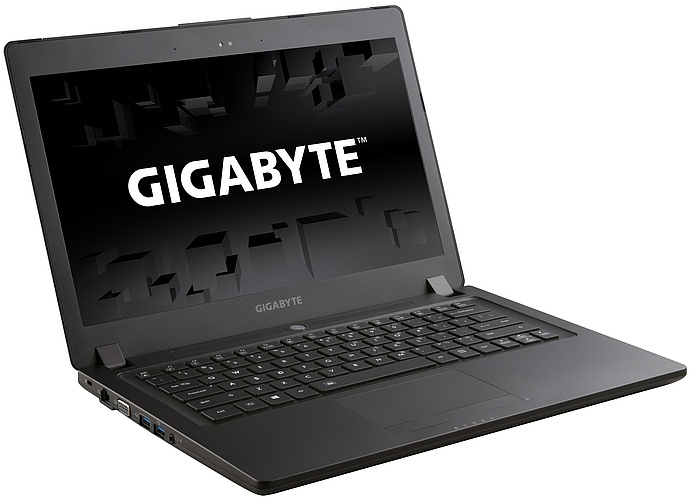
Image result for Gigabyte P34W v3

GTX 970M in a 14-inch laptop. What happens when you cram a 2.6 GHz i7-4720HQ CPU and an Nvidia GTX 970M together in an ultrathin 14-inch form factor? You get one of the fastest and truly portable gaming notebooks around - albeit one with some thermal issues


Though more well-known for their desktop components and related hardware, Gigabyte also produce relatively powerful laptops with impressive hardware aimed at gamers. Our 14-inch P34W v3 is the third iteration of the manufacturer's smallest model, yet the diminutive size is by no means an indication of power as the larger 15.6-inch P35 and 17.3-inch P27G models carry similar GTX 9xxM or GTX 8xxM options.
Equipped with high-end components like the 2.6 GHz Core i7-4720HQ and GTX 970M GPU, the P34W v3 is one of the fastest 14-inch notebooks currently available in the market. Gigabyte advertises the new P34W as the "perfect partner for those who make no sacrifice in mobility and performance". It's almost ludicrous how Gigabyte have managed to squeeze in enthusiast-level components that are normally reserved for thick 15.6-inch chassis or larger in an ultralight form factor. We dig deeper in this review to see just how this was accomplished and if performance or stability had been compromised in the process.
Case
One would expect high-end gaming notebooks to be flashy or showy, but Gigabyte models are typically more subdued and restrained in terms of design. We're fans of this approach as not all users agree with the boisterous designs of dedicated gaming hardware like the Alienware models. The sleek dark gray and smooth mattesurfaces are reminiscent to the Asus ROG models, yet the rounded off edges and corners contrast the sharper and more defined design of a typical ROG notebook. In general, this carries a high-end-but-low-key kind of feel. Otherwise, the chassis is quite barebones with no special texture or accents; It would be easy to mistake the P34W as a regular mainstream notebook at first glance.
In terms of quality, however, the case is a step above mainstream with surfaces that feel solid and well put together. It's not a unibody design, but there are no major creaking, cracks, or crevices to speak of between the plastic and aluminummaterials. Pushing down on the palm rests results in no depressions and only slight depressions when applying pressure on the center of the outer lid. The two hinges, though small in size, hold the light display rigidly with no rocking up to its maximum 135 degree angle. The center of the keyboard is perhaps the only area that feels a bit weaker than the rest of the notebook. Beyond the typical fingerprint magnetaspect common amongst smooth matte surfaces, there is actually little to complain about the overall quality of the chassis.
The minimalistic design choice ultimately comes down to reducing the weight and size of the notebook as much as possible. At only 20.9 mm thick, the P34W is almost as thin as today's 14-inch Ultrabooks and thinner than the much weaker Lenovo Y40. It doesn't quite reach the thinness of a 14-inch Razer Blade, however, as the Gigabyte is still about 4 mm thicker, but it still manages to come in lighter than the Blade by about 100 grams (1.9 kg vs. 1.8 kg) and can be even lighter by another 100 grams if the internal secondary HDD is removed.
Connectivity
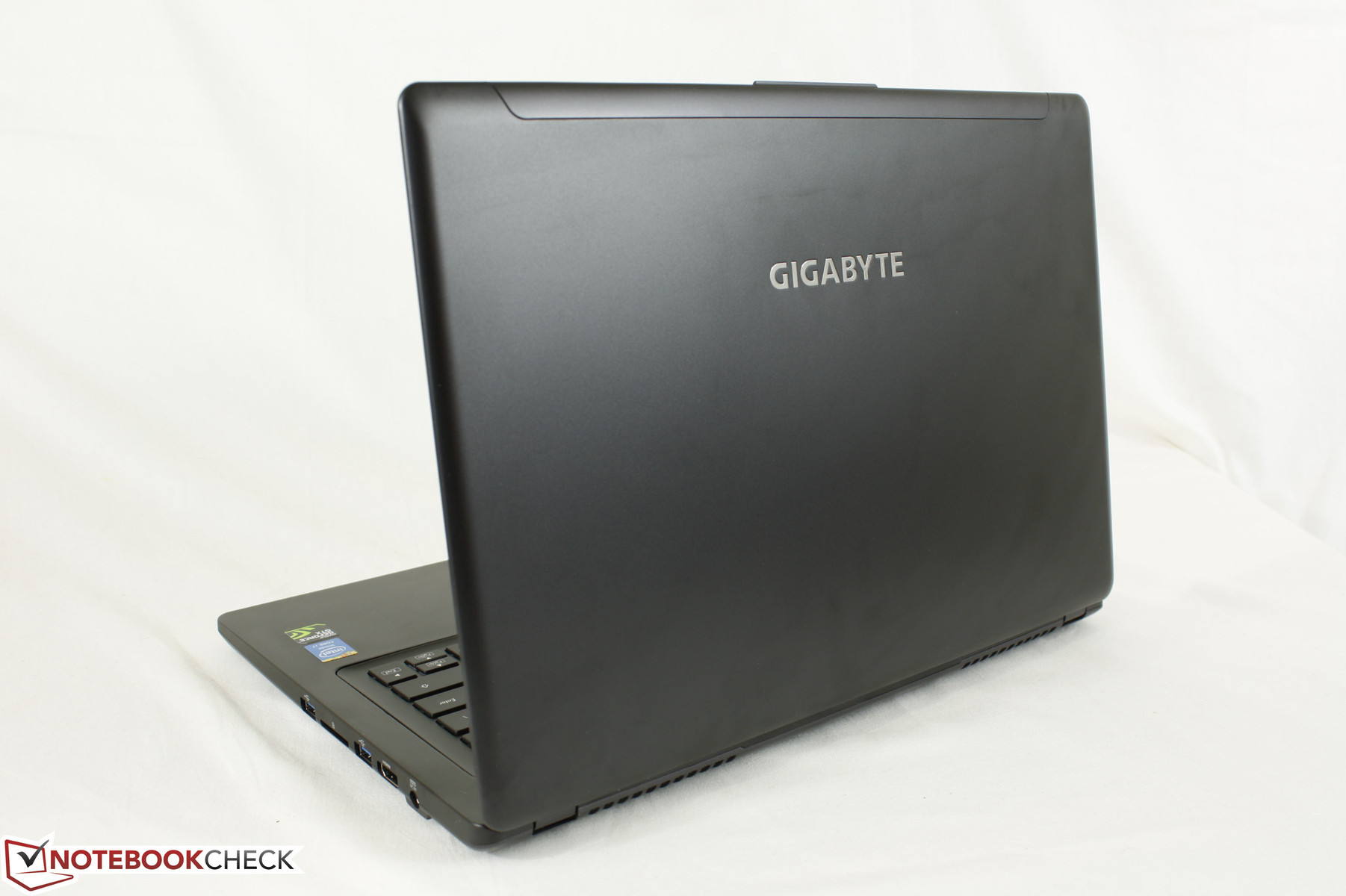
Available ports include the usual HDMI-out and SD reader, but we're surprised that the P34 includes a very healthy number of USB 3.0 ports for the size and even a VGA-out port. There is unfortunately no DisplayPort of any kind or additional audio ports (SPDIF, line-in) that are common on larger gaming notebooks like the 15.6-inch Chimera CX-9 or even larger 17.3-inch Asus G751.

Communication

WLAN is provided by a half-mini PCIe Intel 7260 dual-band (2x2) card with support up to 867 Mbps through an 802.11ac network and integrated Bluetooth 4.0. We experienced no drops or issues connecting to a standard wireless network. No WWAN or GPS options exist as expected from a gaming notebook.

Accessories

The P45W includes no accessories outside of its AC charger. Gigabyte markets generic keyboards, mice, speakers, and other branded items directly through its online market.

Warranty

Gigabyte provides a global two-year and one-year warranty for all of their notebooks and netbooks, respectively. Additional options should be available through the various resellers.

Keyboard

The keyboard (28.5 x 10.5 cm) provides all the basic keys and nothing else; We would have liked to have additional multimedia or auxiliary macro keys to aid in gaming. The directional keys are also not full-size, which will take some time to get used to for games that take advantage of these keys. Otherwise, the keys provide short travel as is normal on thin-and-light notebooks, so Ultrabook users should feel right at home. In terms of feedback, however, the keys do provide a slightly more satisfying and firm click than on most Ultrabooks where the keys can sometimes feel mushy, such as on older Samsung Series 9 models.
Meanwhile, the bright backlight provides two levels of brightness and is actually white in color despite Gigabyte marketing it with a bluer tone. The ambient light sensor can automatically adjust the keyboard backlight as well as the usual display backlight.

Touchpad

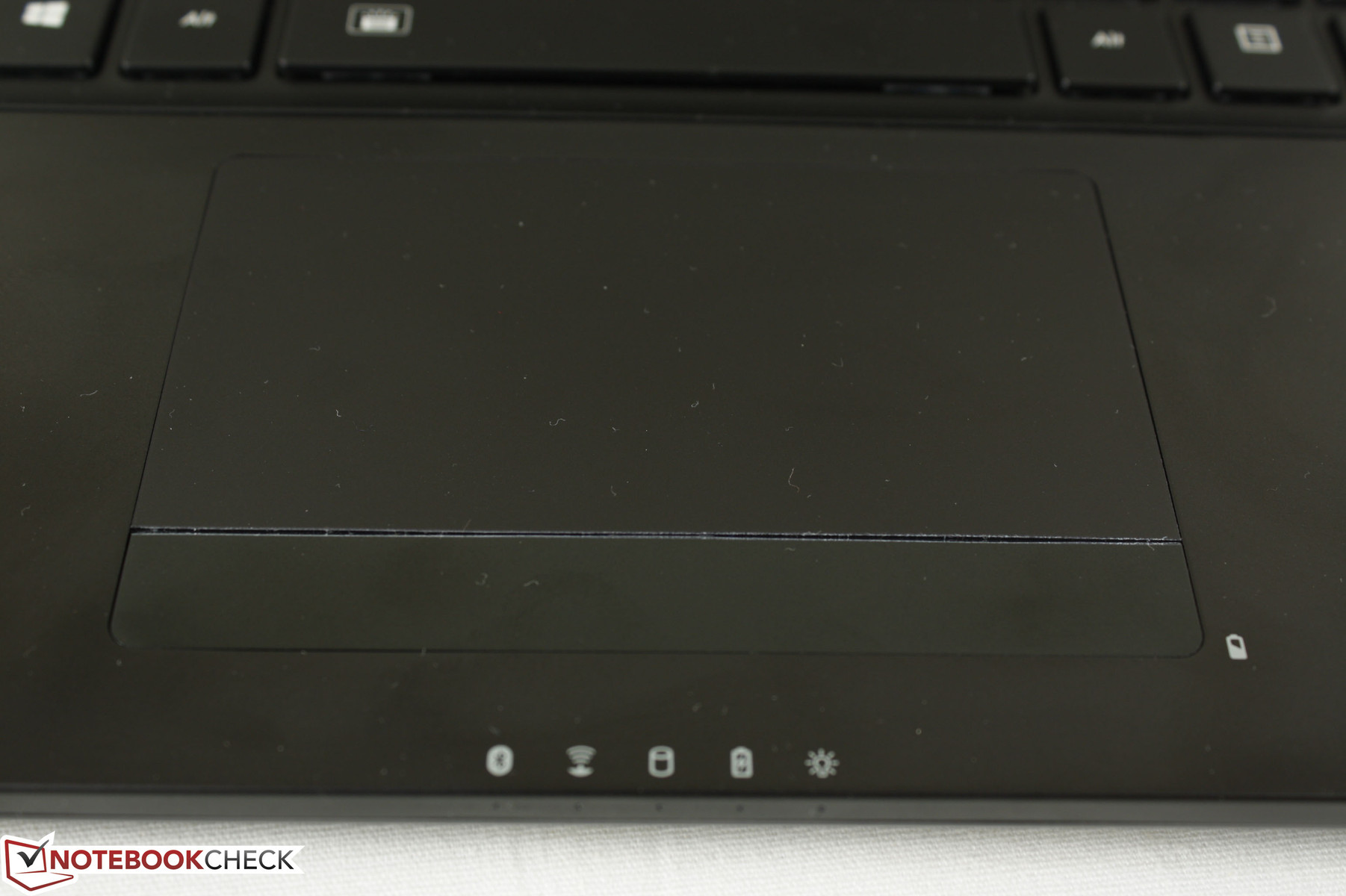
Gaming touchpads are normally quite small as almost all gamers will want to use an external mouse. The slightly rubberized touchpad here (10 x 5.5 cm) will get the job done without any inaccuracies or jumping onscreen pointers for those situations where an external mouse may not be practical. The ELAN software supports multi-touch gestures up to three fingers and responds quite accurately despite the small surface area.
The two dedicated click keys feel cheap compared to the touchpad and keyboard with shallow travel, but feedback is firm and reliable enough for comfortable use if needed. Compared to touchpads with integrated keys, the dedicated keys make it easier to click and drag or highlight text.
Display
The P34W v3 utilizes a matte 1080p IPS display with no other options available. This means no glossy or glass touchscreen options - the sole display option is focused on gaming with no other distractions to keep both price and weight low. Furthermore, this is a high quality AU Optronics B140HAN01.1 panel that can also be found on a number of Clevo barebone models including the Schenker C404 and is also the same panel on Gigabyte's own P34G. Colors are subjectively deep and images appear sharp with no screen-door effect or other abnormalities. Some "color noise" can be observed if viewing up-close and on a pure white background, though this is common on matte screens.
Brightness is more than sufficient for a gaming notebook at about 300 nits. Contrast could be better at just below 500:1, though the accurate grayscale makes up for it.
Color space reproduction is very good at 60.4 percent and 81.8 percent of the AdobeRGB and sRGB spectrums, respectively. This is wider than most mainstream TN panels and many gaming notebooks where 60 to 70 percent of the sRGB spectrum is the norm. For an even better display, very high-end gaming models (such as those from Eurocom) can be equipped with TN panels designed to cover 95 percent of the AdobeRGB spectrum for serious graphics work in addition to gaming.
Further display analyses with an X-Rite spectrophotometer reveal very accurate colors across the board, good RGB balance, and consistent grayscale out-of-the-box. Colors on the P34W generally become less accurate the higher the saturation level, though only by slight amounts. Perhaps more notably, the color temperature is not overly cool and avoids the bluish screen tint that is so common on notebook displays. Unsurprisingly, these results are close to our measurements on the P34G where a similar AU Optronics display panel is used.
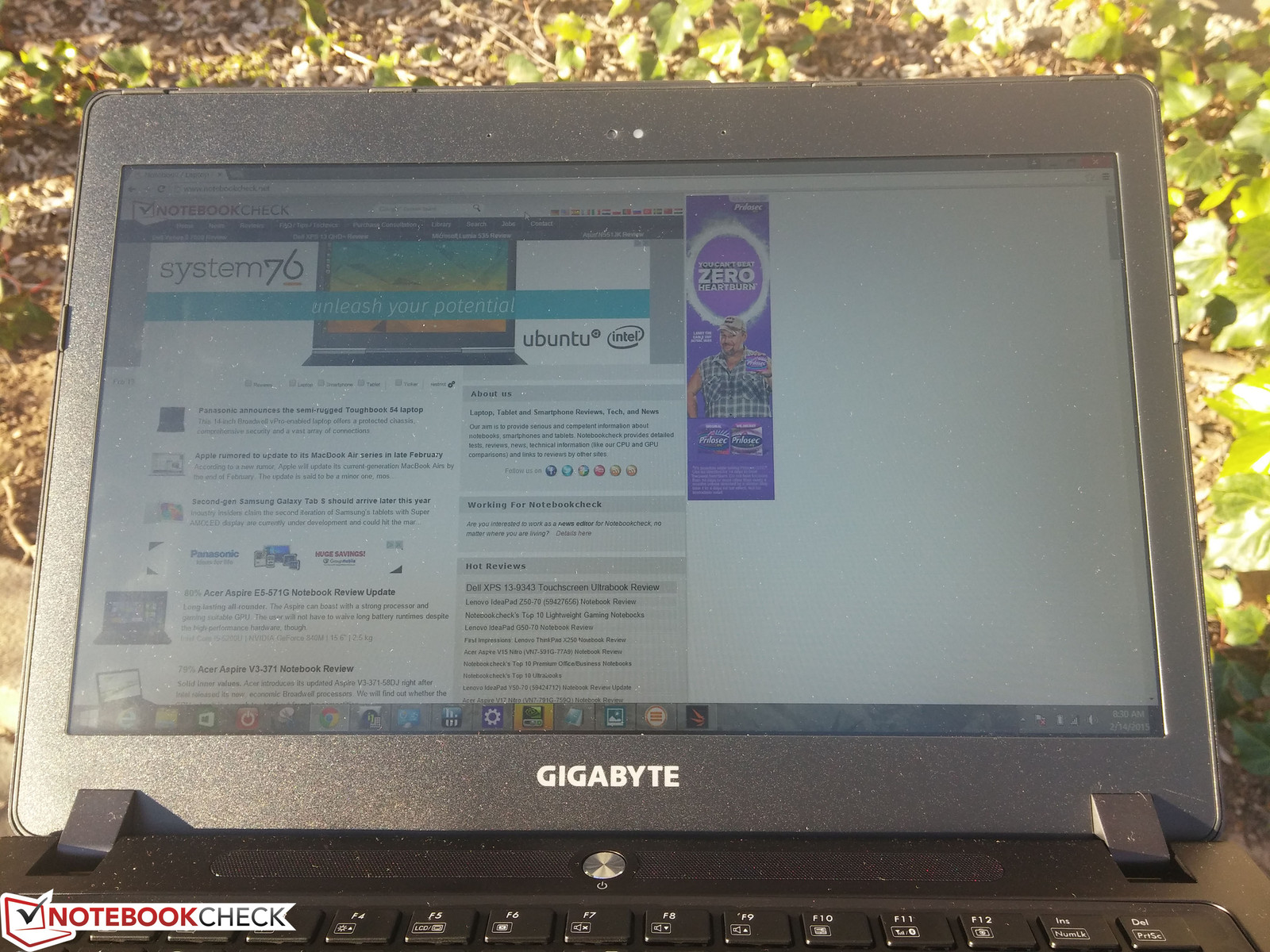
Outdoor visibility is average if at maximum screen brightness and on a cloudy day. Combined with the light weight, small size, and matte display, the P34W will work well outdoors should the occasion call for a quick email or document check, which is already a lot more than what we can say for other high-end gaming notebooks. Regardless, working under direct sunlight is still very difficult as the screen will become washed out.
Performance

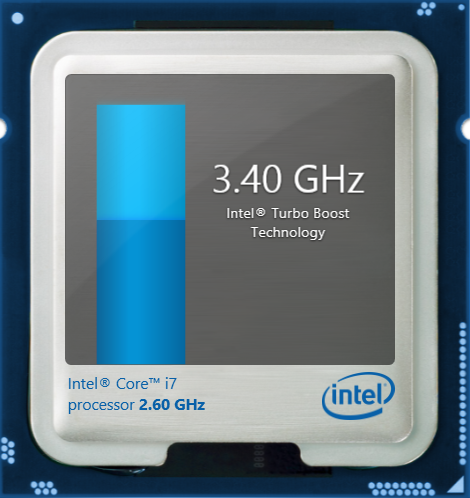
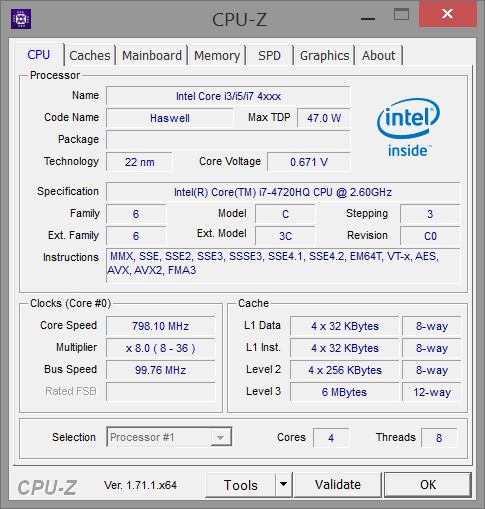
Configurable options are limited to a Core i7-4720HQ CPU and GTX 970M GPU. Power Saver will limit the Haswell CPU to just 800 MHz, but it is otherwise capable of running at its base 2.6 GHz speed with Turbo Boost up to 3.4 GHz. Similarly, the Maxwell GPU can run up to 1038 MHz via Turbo down to just 135/162 MHz core/memory or power down almost completely to save power. The integrated HD 4600 GPU can be activated via Optimus for additional power savings.
System RAM is provided by two Transcend 800 MHz DDR3L modules for a total of 16 GB. The two RAM slots are quickly accessible via a small hatch on the bottom of the notebook. The entire panel can also be removed quite easily via a Philips screwdriver to reveal the cooling system, HDD, mSATA SSD, battery, and other major components. The GPU is soldered onto the board instead of connecting via an MXM 3.0 port as is common on larger notebooks and barebone models.

Processor

The high-end i7-4720HQ CPU in the P34W returns very high scores in synthetic benchmarks that are in the same ballpark as other similarly equipped systems such as the MSI GS60 Ghost and GS70. The CineBench R15 multi-core score of 635 points is slightly above that of the desktop Core i7-2600K while consuming just a fraction of the TDP. Similarly, single-core performance according to Super Pi is just slightly higher than the i7-2820QM, which is one of the fastest consumer-based mobile Sandy Bridge cores available. Simply put, this Haswell core is more than enough for current gaming needs.

System Performance

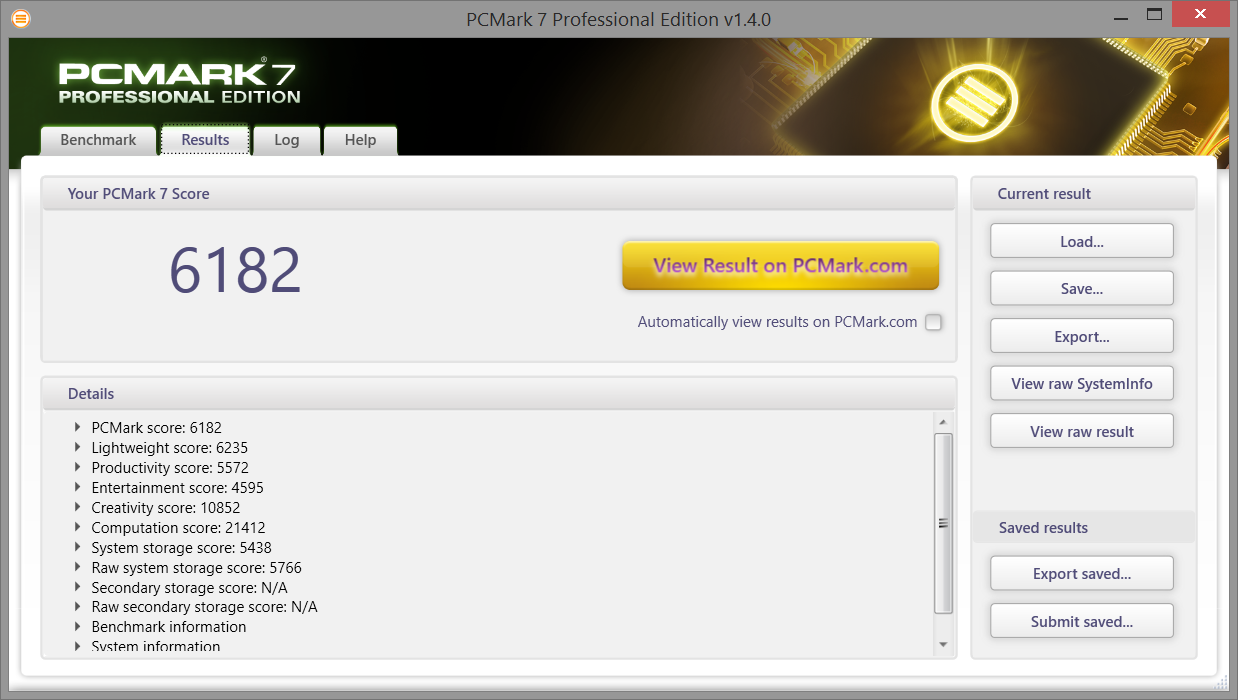
The final PCMark 7 score of 6182 points is very similar to other high-end and much larger gaming models like the MSI GS60 and Schenker XMG P704, both of which also carry dedicated SSDs and GTX class GPUs. Considering that the highest score in our database is 6931 points, the 14-inch P34W already ranks as one of the fastest lightweight gaming notebooks available.
Subjectively, OS navigation and multi-tasking feel snappy similar to an SSD-based Ultrabook. We did experience one odd system crash simply by right-clicking on the desktop, but programs and applications launch quickly and effortlessly nonetheless.

Storage Devices


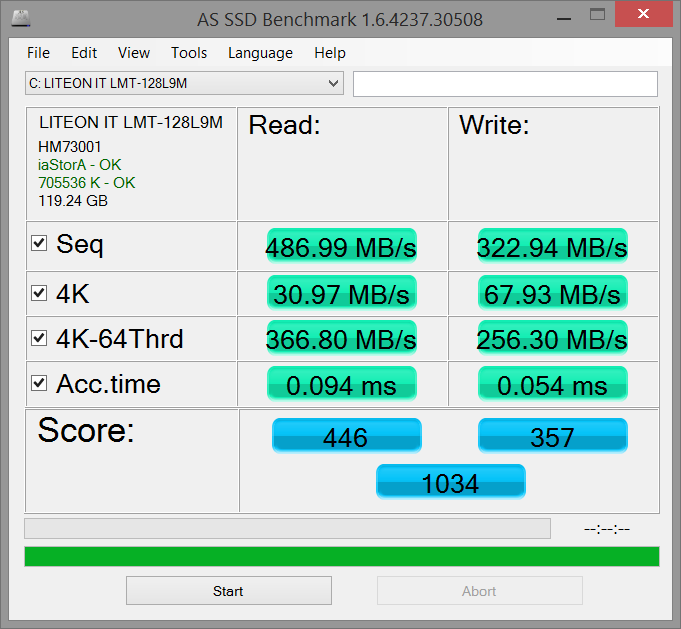
Running a high-end gaming system on a sole 5400 RPM HDD is like driving an automatic sports car - it's still fun, but you get the feeling that it could have been much more exciting. Luckily, the P34W includes both a 2.5-inch SATA III slot and an mSATA slot for both extensive storage and speedy performance. Our test model is equipped with a primary Lite-On 128 GB mSATA SSD and a secondary Western Digital 7200 RPM 1 TB HDD.
SSD performance according to Crystal Disk Mark is standard for a SATA III class SSD with sequential read and write rates above 500 MB/s and 300 MB/s, respectively. The secondary HDD returns a high average transfer rate of just above 100 MB/s according to HD Tune where most 7200 RPM drives are closer to the 90 MB/s range.
Note that the P34W does not support RAID - a feature that many larger gaming notebooks have as standard in this price range.

GPU Performance

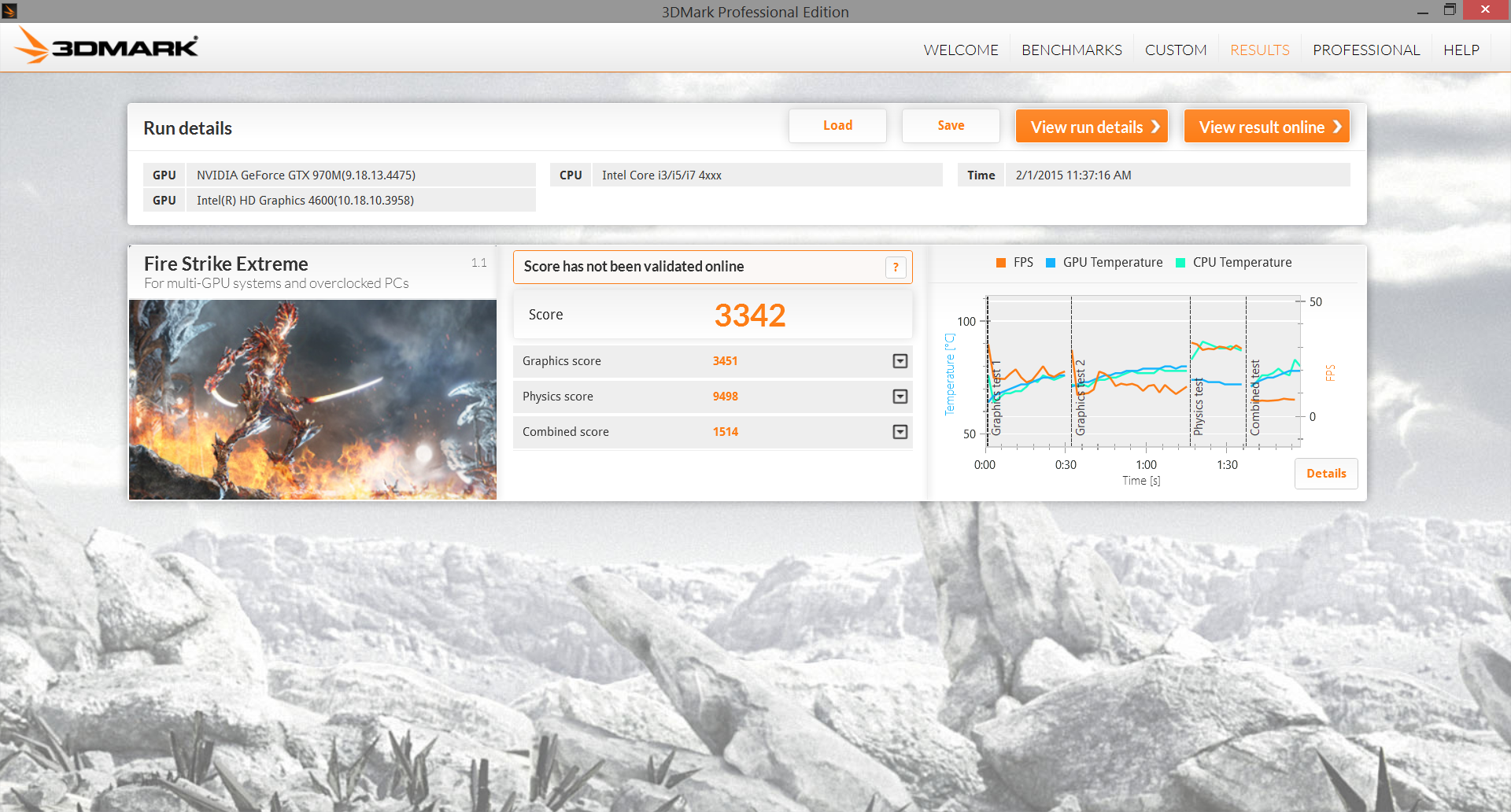
The GTX 970M is one of the fastest single GPU solutions on the mobile market. Synthetic graphics benchmarks place the system right in between the GTX 980Mand GTX 880M as expected and is well over 50 percent faster than both the GTX 870M and Radeon R9 M290X in 3DMark benchmarks. Compared to other systems with the same GTX 970M GPU, the P34W shows similar results.
Note that the GTX 970M comes in two flavors: 3 GB GDDR5 RAM and 6 GBGDDR5 RAM. When compared to the Schenker XMG U505 and its 6 GB 970M, the final 3DMark numbers are still essentially identical. The 6 GB model will likely show an advantage at higher resolutions with more extreme textures.

Gaming Performance

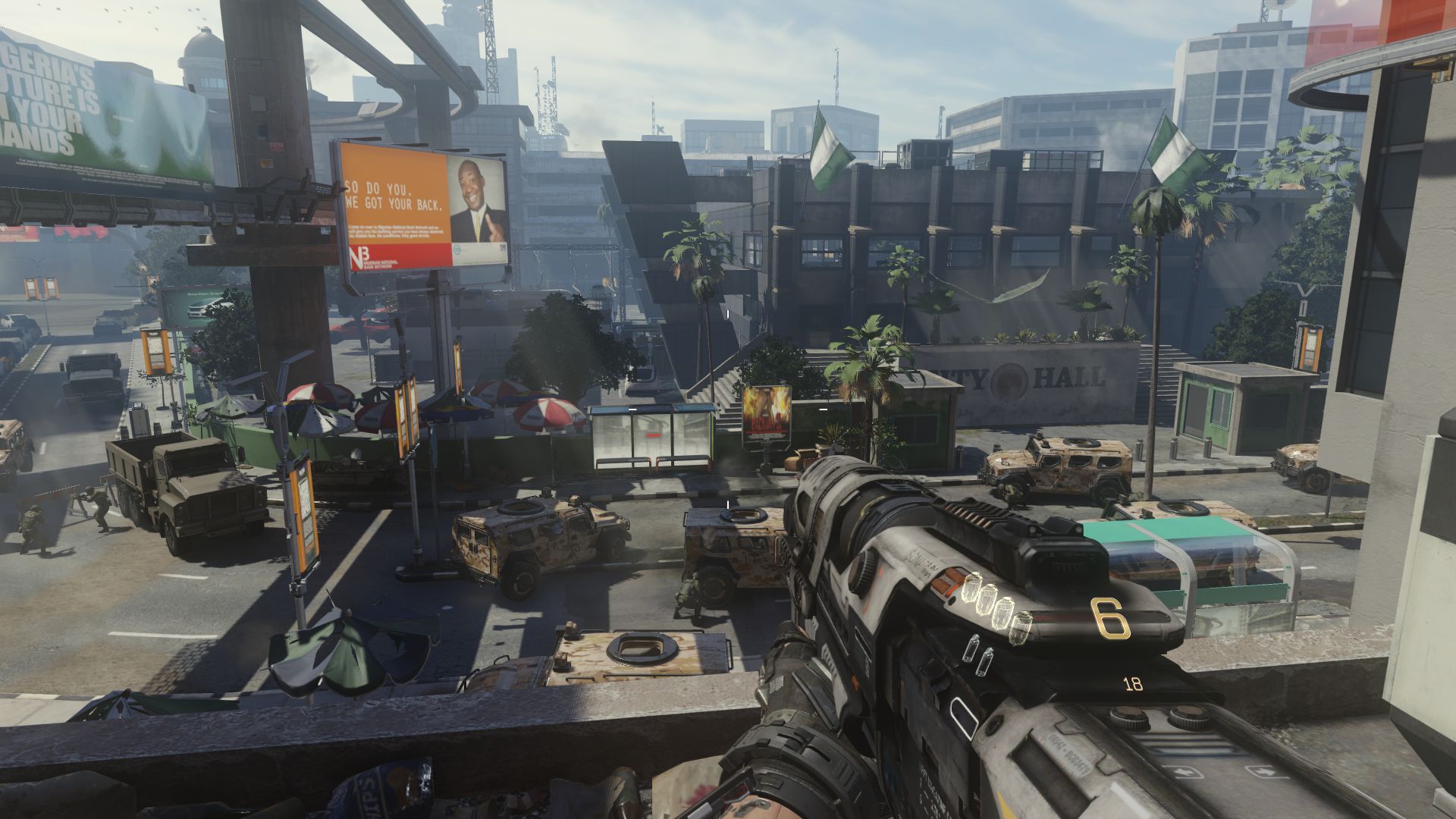
Games play phenomenally on the P34W up to the highest graphical settings. Certain titles stay well over 60 FPS with maxed out settings and are potentially prime candidates for 3K gaming should Gigabyte choose to upgrade the display on this model in the future. More intensive titles like Sleeping Dogs and Ryse average about 50 FPS or a little less at the native 1080p resolution, so the more powerful GTX 980M users still have something to brag about.
Stress Test

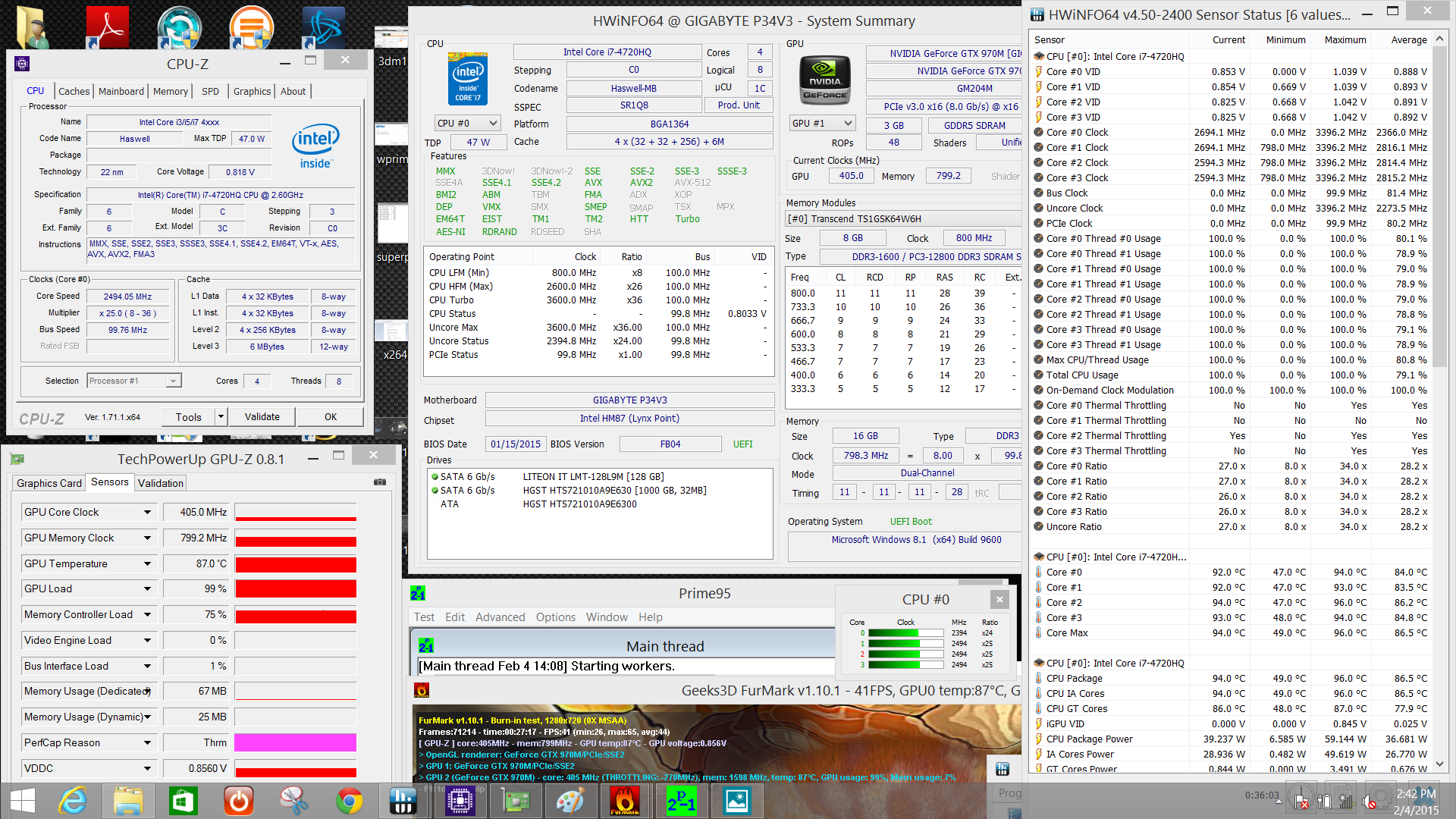
We stress the P34W with synthetic benchmarks to observe for any throttling or stability issues. With Prime95 active, the i7-4720HQ tops out at 3 GHz or 400 MHz less than its rated maximum Turbo Boost while core temperatures reach 80 degrees C. With FurMark active, the GTX 970M fluctuates between 683 MHz and 721 MHzaccording to GPU-Z while temperature peaks at about 85 degrees C. Memory remains steady at its rated 1252 MHz clock rate.
With both Prime95 and FurMark active simultaneously, the CPU can be observed running 100 to 200 MHz below its base 2.6 GHz clock rate with fluctuations up to 2.9 GHz. Meanwhile, the GPU experiences a harder hit with core and memory speeds down to 405 MHz and 799 MHz, respectively. CPU temperature peaks at 95 degrees C, which is just 5 degrees shy of of its rated safety limit, while GPU temperatures reach a 90 degrees C ceiling. A 3DMark 11 run immediately following the hour long stress test resulted in no significant differences in GPU scores, though the CPU score takes a small hit from 8373 points before stress and 8078 points post stress. In the next section, we test to see how this will affect performance in games.
Gaming on battery power will have a much more notable impact on performance. 3DMark 11 GPU and CPU scores drop to 6231 points and 6811 points, respectively, compared to 9779 points and 8373 points on AC power. The CPU can be observed operating at just 800 - 1600 MHz while GPU memory remains flat at just 405 MHz.
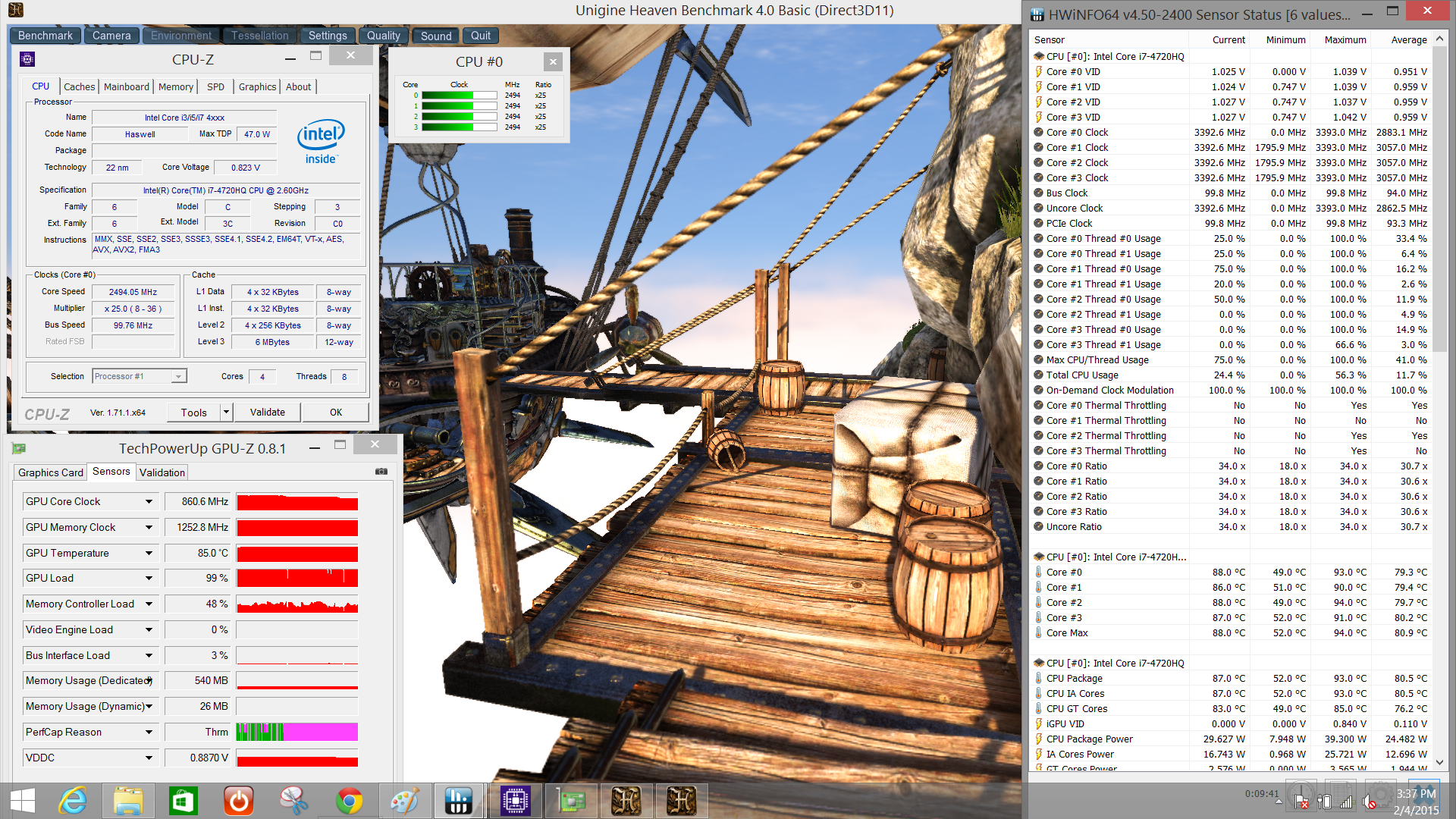
Next, we stress with Unigine Heaven 4.0 for a more accurate portrayal of gaming conditions. The CPU can be observed running at its full 3.4 GHz speed, but will eventually drop to 2.5 - 2.6 GHz with only occasion jumps to 3.4 GHz thereafter. Likewise, the GPU will start at its maximum 1037.8 MHz clock before steadily dropping towards the 700 MHz range over time. As a result, both the CPU and GPU are unable to maintain Turbo Boost for very long and will actually level off below their base speeds.
This unfortunately has a notable effect on frame rates when gaming. With the Metro 2033: Last Light benchmark set to 10 consecutive runs, the first run averages about 50 FPS on very high 1080p settings - standard for a GTX 970M - but this average steadily drops to 45 FPS, 44 FPS, and eventually levels off at about 41 FPS.
System Noise


Gigabyte's "Supra-cool" technology is at its core two 50 mm fans sharing two heat pipes to efficiently cool the CPU and GPU. The fans are never idle - they can be heard whirring even when the system is idle at the highest possible power-saving settings. If on the High Performance profile with the dGPU activated, the system can be as loud as 38 dB(A) just by idling on the desktop. For comparison, the ThinkPad Yoga 14 reaches 38 dB(A) only when under high loads. We definitely recommend putting the notebook and fan in Power Saver and Stealth mode, respectively, if using the P34W in classrooms or libraries. This will also prevent the fans from pulsating between high and low RPMs when running applications.
When gaming, fan noise will quickly creep up to 43.8 dB(A) and then 48.7 dB(A). Fan noise north of 50 dB(A) is also possible under extreme conditions. Activating "Max Fan" mode via Gigabyte Smart Manager will bump fan noise to a blistering 61.2 dB(A), which is one of the highest we've recorded from a notebook. Larger gaming notebooks tend to stay in the lower 40 dB(A) region when stressed.

Temperature

Surface temperatures when idle are not as flat as we would have liked on both sides of the notebook. The temperature gradient is even more extreme on the bottom of the unit near the rear of the notebook as the dual heat pipes are in direct contact with the cover. Consequently, the hottest spots will always be on the surface directly on top of the heat pipes, especially in the area between the CPU and GPU. We were able to record surface temperatures as high as 43 degrees C on this particular spot while on the Power Saver profile with integrated graphics active. This is similar to what we found on the P34G since they share similar cooling solutions. Meanwhile, the Blade 14, Yoga 14, and Lenovo Y40 are much cooler all-around when at an idling state.
When under maximum load, the P34W does a fantastic job of concentrating most of the generated heat towards the rear of the unit and away from the user's palms. This is compared to the Razer Blade or Alienware 14 which experience more even rise in temperatures across both sides. Nonetheless, the right side of the keyboard on the Gigabyte can become much warmer than the left by up to 10 degrees C and the rear can be quite hot at well over 50 degrees C. These high temperatures shouldn't be a huge issue as long as gaming is done on a flat desk with the ventilation grilles unimpeded. WASD-heavy games will also help to avoid the much warmer right side of the keyboard.

Speakers


As amazing as the rest of the specs may be, the 1.5 W stereo speakers here are standard and average at best. The system lacks bass - more so than expected even from a lightweight notebook. The Samsung Series 9, for example, produces both deeper sounds and a wider range than the P34W. The Dolby Digital Plus software helps a bit, but dedicated 3.5 mm audio solutions are recommended.
Battery Life
Power is provided by an internal non-removable 4030 mAh Li-Ion polymer module. The capacity is slightly larger than the Yoga 14 (3785 mAh), but less than the Razer Blade 14 (6400 mAh) and even Gigabyte's own P34G (4300 mAh).
Runtimes are good for a gaming notebook at a little over 4.5 hours of constant WLAN use at a screen brightness of 150 nits (setting 5/10). The more powerful components prevent the P34W from achieving longer runtimes than other 14-inch gaming models as the Yoga 14 and Lenovo Y40 can last longer by at least an hour or more under the same conditions. Nonetheless, battery life is still much better than the Razer Blade 14 across the board.

The P34W v3 isn't just a fast 14-inch gaming notebook, it's one of the fastest gaming notebooks in any size category. This is a small and lightweight notebook that is on par with hulking 17.3-inch models with GTX 880M GPUs. The hardware is well-made with a high quality matte IPSscreen, dual storage options, and easy end-user maintenance. In short, this is a high-end gaming laptop shrunken down to an Ultrabook-like size. Some users may not like the uninspiring chassis, but we imagine that Gigabyte is saving the sharper looks for the Aoruslineup instead.
A number of sacrifices have been made as one can only fit so much in a 20.9 mm 14-inch form factor. Firstly, fan noise is very high - enough to consider wearing earphones when gaming to avoid the noise. Secondly, the dense internals mean fewer hardware features like subwoofers, RAID support, removable battery, additional ports, and upgradeable CPU or GPU, many of which are common aspects of larger gaming notebooks. Lastly, throttling due to thermal limitations is very real when gaming as the GPU will run below its base clock rate even after a short gaming session. The dual fans, dual heat pipes, and plethora of ventilation grilles can only do so much here versus the cooling systems of larger and heavier gaming notebooks.
There are currently no other ultrathin 14-inch notebooks in the market with a GTX 970M except for the recently refreshed Razer Blade 14. It's unfortunate that the Razer will take home most of the headlines and coverage as it features similar hardware and performance for a higher $2000 price point versus $1700 for the P34W v3. For serious gamers constantly on-the-move, the P34W is worth a look.


Senin, 18 Januari 2016

MSI GS40 Phantom

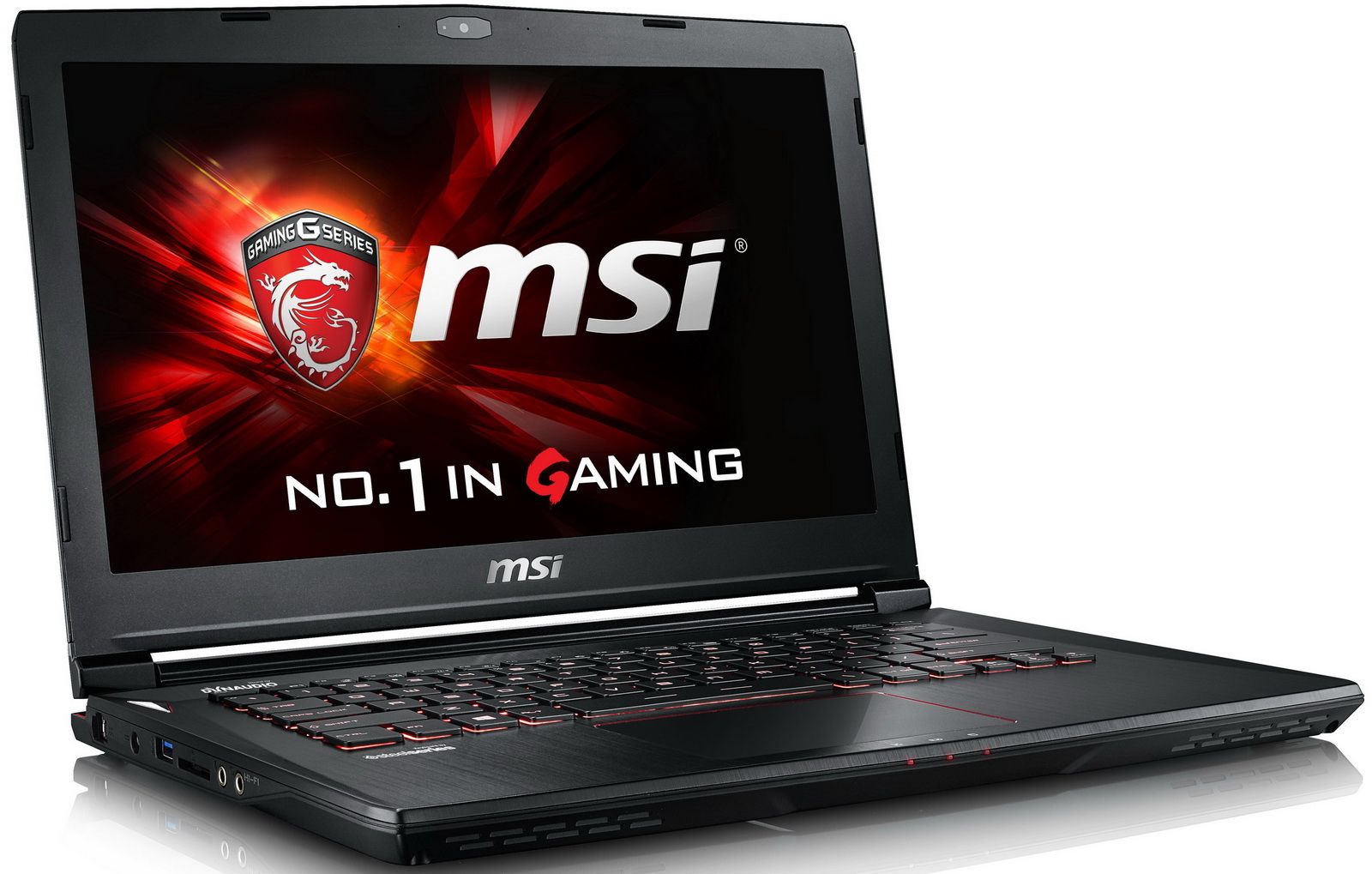
Image result for MSI GS40 Phantom


I think those who prefer a small and powerful laptop will appreciate what the MSI GS40 has to offer. It certainly delivers in terms of hardware specs, performance, cooling solution and screen quality. And is certainly fairly priced, but the keyboard and the speakers are two important aspects that might turn your towards something else.

I’ve been a proud owner of the MSI GS60 for about 18 months now and I’ve shared with you the impressions on the model that I still use, but also on one of the updated models with the 4K display.
Because of its powerful CPU and GPU in such a thin and lightweight design, it has completely replaced my desktop for both productivity and gaming. Of course, as things progress, good things are bound to come in even smaller packages. Enter the MSI GS40 Phantom.
I’ve been looking at this machine in anticipation for a few months now and have finally gotten my hands on one for a few days. Does it live up to the GS60 in terms of quality and performance? Is it enough for me to trade up? See the detailed article below for my answers.

Update: We’ve also reviewed the MSI GS43 Stealth Pro, the updated version of the GS40 with Nvidia GTX 1060 graphics and faster RAM.
Design
The GS40 has a striking resemblance to the GS60, but in a smaller footprint.
The lid appears to have the same brushed magnesium alloy and also has a couple ridges for a special look. The top edge is plastic, which might be for Wifi antenna purposes and is separated from the metal with a red border. In fact, red is pretty much the highlighted color all over the laptop, but MSI managed to keep it pretty subtle for the most part and to me it looks quite nice. What’s no so subtle is the same “Gaming G series” dragon shield adorning the lid (which I hate btw). Not only does it glow with the backlight on your screen, it also sticks out a couple mm – so there is no way to shut it off or cleanly cover it up with a decal.
The build quality is pretty solid for the most part but I’ve definitely felt better. It feels good in the hand, being an appropriate weight and not overly thick. Weighing under 4 pounds is a real plus for a high end gaming laptop. It’s a little thicker than my GS60, but nothing I can complain about. To be honest, it feels a lot like the Lenovo Y50, which I really liked, except for the awful screen. When holding it, I did feel the lid flex a little, which I don’t really like all that much. It’s certainly something I could get used to, but I think it could be better. Also, you might feel a little flex when grabbing it on the rear end with all the vents, but it really depends how tightly you hold it. One thing I want to note is my unit weighed just over 4 lbs, contrary to 3.75lbs MSI advertises.  This makes it only 5 ounces less than my GS60.
If there’s anything I can get nitpicky about, it’s the lack of a tapered contour. I literally needed to use two hands in order to pick it up – something I often found annoying. I don’t think I’ve ever paid attention to it before, but one-handed lifting is something I would expect of a laptop so thin and light. I think most laptops have a tapered lip in the front at least – something to get your finger under and lift it a little. Or maybe even more of a gap with the rubber feet would help. Maybe I’m too picky, but I thought it was worth noting.
Looking from the bottom, it appears to be made out of plastic, but I couldn’t verify it since I wasn’t allowed to open this one. It’s a pretty stylish underside though, with some red accents on the vents of both sides. The look gets ruined though by the absurd amount of stickers they put on the bottom. You can peel them all off, but it’ll affect your warranty considering one of the stickers has your S/N and the other is specifically a sticker that says void if removed.
On the right side of the laptop, you have the intake vent, an HDMI port, a single USB 3.0 port and a USB 3.0 type-C port. On the left hand side, there’s an Ethernet jack, power connector, USB 3.0 port, SD card reader, earphone and mic. The rear offers a single mini-display port and both exhausts for the CPU and GPU.
Opening the lid with one finger is a cinch and under the hood is your typical keyboard layout. This keyboard is recessed a little but it’s pretty subtle, as the metallic palm rest is only slightly angled to give the keyboard some spacing from the screen. Unlike other MSI laptops, the Windows key is located on the left side on this one. Directly beneath the spacebar is the trackpad. I’ll cover the keyboard and trackpad in more detail later, but the trackpad has a pretty nice red border around it to match the accents on the rest of the machine.
The power button is on the upper left corner. It may look a little funny to some, but it’s nicer looking than some of MSI’s past choices. The LED indicator is a single light and isn’t all that bright, but bright enough. It glows red when running on integrated graphics and then turns orange when the 970M picks up the load. It’s a VERY difference between the two, especially when you compare it to the blue/orange power button of the GS60.
The amount of branding on the laptop is pretty aggressive. There are two MSI logos – one on the lid and the other below the screen. A “Sound by Dynaudio” logo is painted on the metal above the keyboard and “keyboard by Steelseries” is painted below it. I was able to remove these logos, on my GS60, with some acetone, so I assume they could be removed on this GS40 as well. The Intel sticker is located on the lower left of the keyboard, which is also removable. Of course, as I already mentioned, this is all in addition to the many stickers on the belly and glowing dragon logo on the hood.
Keyboard and trackpad
The GS40 comes with a SteelSeries branded keyboard. On the outside, it looks exactly like the GS60 keyboard, but unfortunately it falls a little short in terms of performance, which I’ll get to in a minute. The backlighting is red in color and cannot be changed, unlike most other MSI keyboards which are chroma. The layout is pretty typical for your average 13 or 14” laptop, with no keys in any unusual spots.
The keys are pretty well spaced apart and the travel is also normal, but my typing was still a little lacking, which I noticed right away. Don’t get me wrong, it’s far from bad. I just found this disappointing since I love the GS60’s keyboard and the GS40’s keyboard just isn’t as good.
I decided to dig deeper to find the difference and I can only attribute it to the amount of force needed to depress the keys. On the GS60, the force needed was 65 grams while on the GS40 it was only 50 grams. This is my first time measuring this, so I don’t know what’s appropriate, but I like the feedback of the GS60 keys a lot better.
The font on the keyboard is a little strange and will take some getting used to, especially if this is your first MSI notebook. The backlighting is pretty bright and can be adjusted to 3 brightness levels via Fn hotkeys. Looking head on, there’s no visible light bleed, but you can certainly start to see it when looking at the extreme angles. It’s certainly nothing abnormal to look at. At first I was disappointed that the keyboard was stuck at the red color, but I think they made the right choice in the end. It really adds to the look to keep a consistent color scheme with the laptop.
The only other notable thing for the keyboard is the ability of control through software. In the Steelseries software, you’re able to disable the Windows key, on demand. You’re also able to create custom macros for just about any key combination except for the Fn key. This is especially useful for games.
My keyboard unfortunately came with a defect and it’s something you’ll want to look out for as well, if you choose to purchase this laptop. On mine, the tab key has a tendency to click and sometimes even stick. And when it sticks, it can’t be pressed again. It’s not something I think I can fix and I definitely couldn’t live with it since I use the Tab key so often. I did check the forums to see if anyone else had the issue, but nobody spoke up – so there’s that.
Onto the trackpad, MSI has improved in this department compared to their previous iterations. The trackpad surface is still plastic, but it is much smoother than the previous ones I’ve used and feels more premium. This trackpad is a clickpad type, with right click built into the lower right portion.
Overall, tracking and scrolling was smooth and accurate, but there are a lot of adjustments that I needed to make in order for it to feel “just right”. Luckily the included Elan drivers have a lot of options to customize. The only thing Elan lacks (and this is across all devices) is support for the advanced multi desktop/app switching gestures in Windows 10. Something I can live with, but I’d like to see this implemented in the future.
Screen
The model I received has a 14” 1920×1080 resolution panel. HWinfo says it’s an LG panel with the model number LP140WF3-SPD1. It’s a matte display, so reflections from ambient light are properly dampened. It’s also an IPS display, so the viewing angles are fantastic. As far as matte FHD panels are concerned, there’s not a whole lot I can complain about, really.
The only complaint I can note of is the backlight bleed I can see in the upper right hand side of the panel. It’s going to vary from unit to unit, but I’m going to guess that some backlight bleed will exist on everyone’s version. The cause of the bleed is almost definitely from the lid being so thin and the mediocre support of such a thin plastic bezel. These IPS panels are prone to backlight bleed if there’s even the slightest bend in the panel. To further prove my theory, if I push or pull the lid from that corner, the backlight bleed disappears and shifts to another portion of the screen. Note that this is only noticeable on a black screen in a very dark room. In no way can I see this light bleed in daylight or on a non-black screen.
Aside from that, the picture is very nice for a FHD screen, having nice colors and proper contrast. I took some measurements using my colorimeter and the gamut measured to be 91% sRGB, 68% NTSC and 71% aRGB. I’ve seen many panels get a sRGB closer to 98%, but I really can’t tell the difference with the naked eye. Other specs I measured was a contrast of 620:1, maximum brightness of 292 nits and blacks measured at .47 nits. These are all pretty good values, although I so wish the screen could be a little bit brighter for outdoor use.
  • Panel HardwareID: LG Philips LP140WF3-SPD1;
  • Coverage: 91% sRGB, 68% NTSC, 71% AdobeRGB;
  • Max brightness in the middle of the screen: 292 cd/m2 on power;
  • Contrast at max brightness: 620:1;
  • White point: 6800 K;
  • Black on max brightness: 0.47 cd/m2.
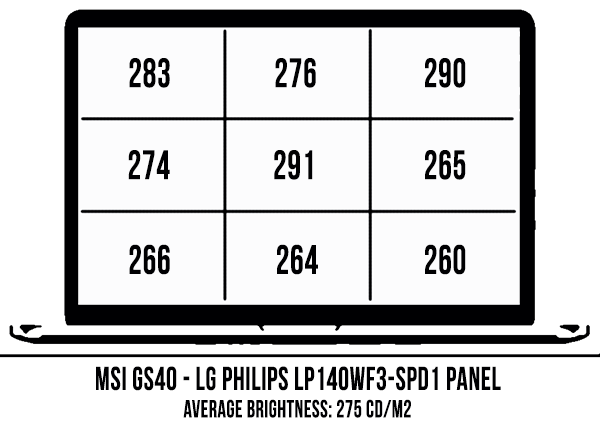
I also checked the brightness distribution, which you can see the results below. The bottom of the screen is a little lower in brightness than the upper parts, but it’s very minor and almost impossible to see with the naked eye. These measurements are also at maximum, so they’ll be much closer together, the lower in brightness you go.

Hardware and performance
My GS40 came fully loaded with an i7-6700HQ quad-core CPU and an Nvidia 970M GPU. I haven’t seen any other configurations out there yet, but they may possible offer a 965M version like they did with the GS60. My unit also came with 16GB of Ram, which seems to be the standard now for gaming laptops. What’s nice is it’s DDR4 2133 MHz, so there’s little need to upgrade it any further. I have no way to confirm it, but this laptop should support 16GB sticks, so you could potentially go up to 32GB of RAM if you desired.
Also equipped in my unit was a 128GB M.2 SSD and a 1TB 7200rpm HDD. Thankfully, the M.2 slot is PCI-E, so your R/W speeds are phenomenal (which I cover below). Unlike the previous gen GS60s, there’s no second M.2 slot though. I was pretty bummed about this with the Skylake GS60 as well, since it removed the ability to have a third storage drive. MSI probably removed it since the need for RAID isn’t there anymore with the PCI-E slot. If you’re like me, you’ll probably look to replace the HDD with a SSD right away, since that 128GB is going to fill up REAL quick.


Synthetic Benchmarks

As usual, I ran my typical benchmarks to test both the CPU and GPU. There were no surprises here really. I fully expected the GPU to perform very similar to my GS60, and it did. There was a significant performance bump with the CPU, which is also expected and welcomed. My only worry was the cooling, but it looks like MSI has it under control. Here were my results:
  • 3DMark 13:IS – 85132, Cloud Gate – 21454, Sky Diver – 18344, Fire Strike – 6549 with max CPU 87°C and max GPU 82°C;
  • 3DMark 11: P9085 with CPU at 85°C and GPU at 79°C;
  • PCMark 8: Home Conventional- 3349; accelerated – 3890;
  • Cinebench R11.5: OpenGL – 50.38fps, CPU – 7.44 pts, Single Core CPU – 1.62 pts;
  • Cinebench R15: OpenGL – 58.92fps, CPU – 680 pts, Single Core CPU – 142 pts.

Gaming Benchmarks

I tested out a number of different games and was very impressed with how they performed. The smaller footprint certainly didn’t affect the 970M as I was able to play some of the latest titles on maximum without any throttling issues. Here were the scenarios and my results:
  • Fallout 4– Ran from one end of the Commonwealth to the other, constantly looking and shooting all over the place.
    • Ultra settings, Max AA and AP 1080p – 45-60fps with occasional drops to 35fps. Fully playable.
    • Default high settings 1080p – 50-60fps with occasional drops to 40fps.
    • Peak CPU temp 86°C, peak GPU temp 80°C
  • Crysis 3– Played through the opening scene for 10 minutes.
    • Very High settings, no AA 1x AF, 1080p resolution – 30-45fps
    • Peak CPU temp 85°C, peak GPU temp 78°C
  • Dragon Age: Inquisition – Walked around one of the first camps and got into a battle. Played for about 10 minutes for each session.
    • Default ultra settings at 1080p – 35-40fps
    • Default high settings at 1080p – 55-60fps
  • Peak CPU temp 86°C, peak GPU temp 78°C
As you can see, the 970M in the GS40 is able to handle even some of the most demanding games. It helps that the screen is limited to 1080p too, considering how I’ve witnessed the 970M struggle with 3k and 4k resolutions.
You should also know that the size of the screen is going to affect how much you can tell the difference between your graphics settings. For example, in Dragon Age, I couldn’t tell the difference between high and ultra settings at all. And given that it’s a difference of 20 fps, there’s absolutely zero reason to keep it on ultra. Unless you’re outputting to an external display, you might want to consider dialing back the settings to achieve even better performance (and lower temperatures).
Noise, Heat, Connectivity, speakers and others
And now on to my favorite part about the laptop. Many of you will be asking how well the GS40 is able to handle heat dissipation. It’s a smaller footprint and still a pretty thin design, so many would probably expect it to struggle. I’m happy to say I found no evidence of that. In fact, I’ll go out on a limb and say the GS40 does an excellent job at removing the heat.
Sure, when gaming, the underside gets hot – but it’s cooler than on many previous laptops I’ve seen. With the exception of the part that never touches your legs (top middle, which gets actually HOT; the exhaust on the back reaches high temperatures as well, around 57 C), the underbelly temps were consistently 5-10°C lower than the Broadwell GS60 I reviewed. I didn’t need a thermometer to tell me that, it felt cooler on my lap as well. In fact, most of my gaming was done on my lap and I didn’t get all that uncomfortable.
You can credit the fan and heatsink configuration for the improvements. Instead of having the standard GPU and CPU in single heat pipe lineup, MSI chose to beef up the GPU side and add more copper heat pipes. From the pictures on a disassembly guide, it looks like they have two intake heat pipes going onto the GPU and the fan evacuates half of it while another heat pipe supplies the CPU. The CPU fan then evacuates the heat on the other side. It looks like passive air can be drawing in from the bottom, but the main intakes and exhaust are not on the underside, which is good for your lap. Overall, I give them an A+ in this department.
As for physical noise, the CPU fan will constantly run and the GPU fan will stay off until needed. This is the same as many of their other models. I didn’t get a chance to see if their fan tweaking software works for this model, unfortunately. I would assume it does, and if so you’ll be able to edit the fan profile to run silent until the CPU reaches a certain temperature threshold.
I took some noise readings at head level with my cell phone. I used a sound app, which is far from professional in terms of measuring actual results but it’s good enough to compare to ambient levels I read. Here’s what I got:
  • Ambient noise – all fans off: 20dB
  • Idling with lowest CPU fan, GPU off: 25dB
  • Both fans on: 30dB
  • Maximum I measured during gaming: 40 dB
For connectivity, MSI decided to go with the Killer N1525 Wireless AC, which has been a great performer in their other laptop models. For my week of usage, I had a solid connection with no drops whatsoever. From 30 feet from my router, I reached download speeds of over 70Mbps. There is also a Qualcomm/Atheros E2400 Gigabit Ethernet controller onboard and Bluetooth 4.0 included with the wireless card.
Speakers – I’ll come right out and say it: the speakers on the GS40 are just plain awful. I thought they would be the same as the GS60, which were decent at best, but they are way worse. The sound is heavily dampened and I even brought my GS60 into the same room and mimicked all the settings to directly compare. It was night and day.
Nahimic is the software bundled with this laptop, to help try and improve the audio experience. For the GS60, you actually needed this software to make the speakers sound decent, but it doesn’t do the trick for the GS40. MSI’s marketing literature also speaks of an internal subwoofer, but I found no evidence of one at all. The bass on these speakers is barely existent at all.
I played a song off of Youtube and cranked the volume all the way up and the maximum reading I got was a mere 44dB. For comparison sake, the same song on my GS60 measured about 75dB. For people who use headphones (which is probably most gamers), this will not be an issue at all. For people who don’t use headphones, I suggest you invest in a pair, if you plan on buying this laptop. When you have fans that make 40dB and speakers that only go up to 44dB, you won’t be hearing the game you’re playing all that well.
Battery life
My battery test consists of using the stock “Power Saver” power profile, 30% brightness(80 nits), WiFi off, Bluetooth off, and running a 720p movie in a continuous loop at full screen with the volume muted. I start the clock when it’s unplugged and stop it when the unit performs a self- shutdown. This GS40 lasted 5 hours and 37 minutes before shutting down. This is pretty impressive when comparing it to the GS60.
Using Batterymon, I was also able to test the discharge rate at certain conditions and estimate how long the laptop would last under those conditions. Wifi and Bluetooth were on for all situations and the volume was set at 50%. Here are my results:
  • Balanced mode, full brightness, surfing the web in Chrome – 20.0W – 3 hours
  • Balanced mode, 100% brightness, surfing the web in IE – 16.3W – 3,7 hours
  • Balanced mode, 100% brightness, Youtube 1080p IE – 17.6W – 3.5 hours
  • Balanced 30% brightness, Youtube 1080p IE – 15.8W – 3.9 hours
  • Power Saver, 100% brightness, Idle – 14.6W – 4.2 hours
  • Power Saver, 30% brightness, Idle – 12.5W – 4.9 hours
  • Power Saver, 0% brightness, Idle – 12W – 5.1 hours
Overall, battery life is pretty decent on this machine, considering it’s using a quad core CPU that isn’t designed for power savings like the Ultrabook CPU models. It’s certainly a step up from the GS60 and is about on par with Gigabyte’s P34W and the new Razer Blade.

Final Thoughts
Overall, I’ve got mixed feelings about the GS40.
It certainly has it where it counts in terms of hardware and performance. The cooling capability is also almost ideal, considering it has a 970M inside. I haven’t personally handled the new Razer Blade, but from what I’ve researched, it’s about the same in terms of cooling. I’m also very impressed with all the connectivity options and multiple hard drives being in such a small package. These things really make it shine over the Razer Blade.
I do wish they would have improved the performance on the keyboard though, and I think it’s the one of the two faults of the machine that I can really ding them for. Sure, I’m biased from using the GS60, but I know the potential is there and I would expect to receive it in my future purchases from MSI. The other fault being the poor speaker performance holds less weight to me, but it’s certainly something you all should think twice about before purchasing. This is especially if you plan on watching movies on it and using the internal speakers. I can honestly say I would never use this laptop to watch a movie without headphones.
If I were in the market for a 14-inch gaming laptop, this one would certainly be in my top three, especially considering the price is considerably lower than the Razer Blade. The Gigabyte P34W would also be on my radar though, because it has almost identical specs and is $100 less. Of course Gigabyte laptops also have build quality and keyboard issues sometimes, so there’s that. The Razer Blade offers much better build quality, a better screen (and a touchscreen for that matter) and a Thunderbolt 3 port, but prices start near $2000 and it only offers M.2 SSD Storage, with no 2.5” bay.
In the end, I think most people’s decisions would be driven on the specs and the price. For me, if the keyboard was the same as of my GS60, I would consider converting – that’s how close I am to liking it. It’s not though, so I’ll be sticking with the GS60, but I think many of who who prefer a smaller laptop would be fine with what the GS40 has to offer.
If you guys have any questions or need me to clarify on anything, please leave a comment below. Also, if you’re an owner of the machine, I’d like to hear your thoughts on how you like it.