For the brief time I used the GS60(FHD) earlier this year, I was very impressed.
It fell a little short of what I was looking for though, and comparing it directly to a Razer Blade, I decided it wasn’t what I was looking for. At the time, the 3k version wasn’t out yet and there were rumors of a sub-standard gamut screen being used, so I lost interest.
A few weeks ago, I got the opportunity to buy a GS60 Pro 3k version at a heavy discount. To my surprise, the 970M version was also released a couple weeks later, so I just had to try it out.
I spent a few weeks with the 870M version, but was able to get some benchmarks on the 970M version as well. Here’s how they both looked to me.
Design
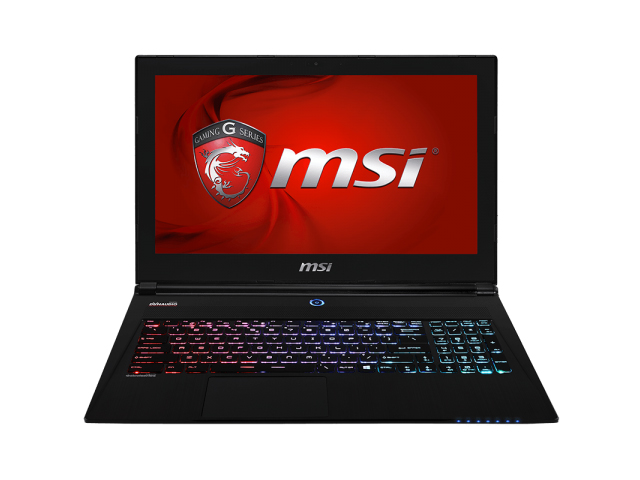
The GS60 is very well constructed. The body is made mostly of a magnesium alloy and the rest plastic. The lid has a couple stylish ridges that are subtle but give a unique look to it. The ugliest part of the entire laptop (which happens to be on the lid) is the badge they chose. It’s a shield with a dragon inside it, with the text “Gaming G series”. It also glows from the backlight of the screen. Without that badge, you could get away with discreetly using a gaming laptop in a business place but I think the glowing dragon will get a lot of attention in the conference room.

Under the lid is a Steelseries keyboard, which will be discussed later. The keyboard is recessed into the curved, metallic palm rest. Above the keyboard is a centralized power button and some passive vents. Centered with and below the spacebar is the trackpad. The recessed keyboard is a nice look but one thing I noticed right away is how much closer the keyboard is to the front edge than other laptops. In fact, the trackapd is also right at the front edge. This isn’t too difficult to get used to but the trackpad at the edge makes certain laptop positions more difficult. For example(and I’m getting kind of personal here) when lying in bed, I like to extend the screen past 135° and prop the keyboard at an angle along my legs. The front edge of the laptop ends up at my waist line. Even with a shirt, I was inadvertently activating the trackpad quite often.
The bottom is also metallic and has a number of rubber feet. There are also two passive vents and some thermal pads. These thermal pads weren’t in the early revisions and were likely placed there because of complaints of burning your legs. The bottom is also littered with stickers, which is kind of an eyesore especially if you’re conscious of how you look carrying it around. Most are removable but some may affect your warranty.
This brings me into the amount of branding on the laptop. In lieu of bloatware(which don’t get me wrong, there still is some) MSI basically found a way to advertise every component in the laptop. MSI logos are both on the lid and below the screen. The glowing badge is on the lid. You’re typical Intel sticker in on the palm rest. “Sound by Dynaudio” is above the keyboard and “keyboard by Steelseries” is below it. On the bottom you have Windows, Sound Blaster and Nvidia stickers. There’s also MSI warranty, customer service, serial number and regulatory stickers on the bottom. Everything on the bottom and the Intel sticker is removable but the rest you’re stuck with.
The only plastic on the laptop is the bezel surrounding the screen and the hinge/vent bracket on the back edge of the laptop. This is out of necessity as it would be really expensive to make these parts out of metal. It’s a really good blend though, as I hardly notice the plastic during use since I barely touch those parts. I also give a lot of credit to MSI on making the entire laptop comfortable to use and carry. So many metallic laptops are plagued with sharp edges on the armrest and underneath the screen. There’s not a single spot where I noticed any sharp edges.
Keyboard and Trackpad
As with all laptops, I find the keyboard and trackpad the most important since they are used daily. The Steelseries keyboard on the GS60 is quite a treat to type on. The travel on the keys is pretty good for an Ultrabook and the response is perfect. While typing this review, I have not noticed any missed keystrokes and overall I was able to adapt to using it as my daily driver. The keyboard is full sized and includes an almost proper sized right shift key (important to me) and a number pad. There is a little flex in my keyboard but it’s nothing too drastic. I didn’t notice any flex in the previous unit I used at all, so it might differ from unit to unit.
There is also a backlight on the keyboard that not only has the ability of change colors, but has 3 zones so you can use different colors in different areas. It’s more for looks, as there’s not much practical use since the colors smoothly blend across the zones instead of there being a definite line between colors. There are also options to have a pulsating color or a “wave” effect. It’s pretty cool if you’re into that sort of thing but it’s not for me. I do like the hotkeys for different colors though. Fn 1-4 allows you to quickly switch between colors, which can come in handy if some colors suit you better than others in dark rooms. Note that there’s no brightness settings for the backlight – only on and off. The 970M version has four levels of keyboard backlight brightness, plus off. The 870M version unfortunately only has on and off, however on is at the highest setting.
A couple oddities with the keyboard are the Windows and Fn key placements. The Windows key is on the right hand side, which is opposite to every laptop I have used in the past. It takes a little getting used to but I can live with it. The Fn key is also very far from the common keys you’ll use it for(brightness, volume, etc.) I really wish they were reversed so it would make one handed controls a little easier. Unfortunately, the Fn key is practically the only key that can’t be reprogrammed in the Steelseries software. Speaking of the software, they did a really good job making it simple to program your own macros and shortcuts as well as change your color profiles.

Now onto the trackpad. If you asked me a few months ago, I would have told you the trackpad was a piece of junk. And that’s because it was… But after a recent firmware update and an alternate driver, I find the trackpad to be quite useable. The firmware made a huge improvement and should be enough for most, but the alternate driver made a couple more options present that aren’t in Elan’s default software. The trackpad is properly sized and placed right under the spacebar. It’s a clickpad, so there are no physical buttons. Accuracy and tracing are pretty good but the texture of the pad itself could be a little smoother. It also picks up most of my gestures.
Don’t get me wrong, this is no Apple trackpad by any means but it is certainly adequate enough to get around webpages and documents through multi-touch gestures. The key to liking the trackpad is definitely tweaking the settings to your expectations.
Screen
The previous GS60 I had sported the matte FHD screen. To me, it was a good fit for the laptop, although I think it could have been a little brighter. I prefer bright glossy screens over matte, simply because of the added color pop and sharpness to the images. Early reviews of the 3k edition swayed me away from giving it a chance a few months ago though. Some reviews reported sRGB coverage of 79%, which is a bit low compared to most panels today. Needless to say, when I got the 3k version, I had really low expectations. Boy was I surprised to find out the screen is fantastic!
The panel supplied with the unit is a Panasonic IPS 2880×1620 glossy screen. The model number is MEI96A2 VVX16T029D00 according to HWinfo. Screen brightness is measured to be just over 300 nits. I measured 92% sRGB, 72% aRGB and 68% NTSC coverage. Contrast ratio across the brightness levels averaged around 600:1.

Viewing angles on the panel are stellar. When looking at extreme horizontals and verticals, you can still read the text perfectly and the colors remain. It’s only when you get into large horizontal AND vertical angles where the colors slightly shift, but it’s nowhere near as bad as the other 4K panels I’ve been seeing lately. In comparison, it’s very much the quality of angles you’d see on a flagship smartphone. My unit did have a little backlight bleed, which is probably my only gripe with the screen at all.
The glossy panel may cause concern for some. I will say that for outdoor use, you might struggle reading on the screen due to the glare. The max brightness certainly helps and all in all the glare is actually not that bad for a glossy panel, but it’s still present. I will say that the lack of a touchscreen is a good choice because the glass panel really adds to the glare and is unnecessary.
Hardware and performance
One nice thing about MSI is they give you about every possible configuration to buy. Every GS60 I’ve seen comes with the same CPU though. Typically RAM options are either 12 or 16GB. There is always a 1TB HDD and at least one 128GG M.2 SSD, with some configs(including this one) having an option for a second 128GB M.2 in RAID 0.
GPU options are all over the place. The base unit(non-Pro) will support a Kepler 860M. There is also a version out there that has an 850M but I don’t know why anyone wouldn’t spend the extra $100 to get the better GPU. As of October 7th, the Pro model is now offered with two selections for the GPU: the 870M and the 970M. Both GPUs have a base memory of 3GB, but the 970M also has options for 6GB of VRAM.
As for display panel selections, you have the option of a matte 1920×1080 screen and a glossy 2880×1620(3K). As of October 7th, you also have a glossy 3640×2160(4K) option for the 970M models. I would be cautious of pulling the trigger on the 4K model though, simply because the 870M had a really tough time playing modern games in 4K. You have a lot more options playing games in 3K with the 870M and even more options with the 970M. There are also scaling issues with 3K and 4K laptop screens that you just have to deal with. I find the 3K resolution much more tolerable overall.
For connectivity, a LAN port is located on the right side towards the back. There is also an HDMI port, Mini Display port and a USB 3.0 socket on that same side. On the left side is the power adapter, 2X USB 3.0, a headphone jack and a microphone jack. It pretty much as anything you’ll need to use this as a dedicated machine with dual displays as output.
There is also an Intel Wireless AC 7260 card onboard, which is fine for the most part. I was able to use it and max out the speeds at home and work with good range. At certain airports I was unable to connect though. I ended up doing some tweaks to the driver mentioned in the forums and it worked just fine after that.
The CrystalDisk benchmarks were very good, with sequential read speeds around 1055MB/s and sequential write speeds of 678MB/s. 512K speeds were 463MB/s read and 654MB/s write, which is good as well. Boot time for me is about 12 seconds for configurations in RAID 0 and 7 seconds for a single SSD configuration.
Other benchmarks were as follows:
With the Nvidia GTX 870M graphics
- 3DMark: FS – 4402, SD – 14415, CG – 16610, IS – 99233
- 3DMark temps: Max CPU 83°C and max GPU 94°C
- PCMark 8 – 3094 with max CPU 80°C and Max GPU 60°C
- Prime95:
- Small ftf
- Turbo 2.8Ghz @ 80C for 1 min
- drop to 2.7Ghz@ 83C after 3 min
- drop to 2.6Ghz @ 84C after 5 min
- stable until 15 minutes at 2.6-2.7Ghz with max CPU temp of 90C
- 15 seconds to idle fan and CPU under 65C
- Large ftf
- Turbo 3.1Ghz @ 80C for first 30 seconds
- Drop to 2.8Ghz @ 82C after 1 min
- drop to 2.7Ghz @ 82C after 5 minutes
- stable at 2.6-2.7Ghz until 15 minutes. Max core temp 85C
- 15 seconds to idle fan speed and 65C CPU
- Furmark:
- For first 1:30, slow rise to 92C, slow drop from 940 to 901 Mhz
- The following 6 minutes was throttle cycles between 862 and 431 Mhz, temp locked at 93C
- The remainder was a stable 757Mhz clock @ 93C
- took 20 seconds to cool down to idle
- Furmark + Prime95(small ftf):
- 30 seconds: Turbo 2.9Ghz @ 81C, 928Mhz @ 85C
- 1 minute: 2.5Ghz @ 82C, 901Mhz @ 93C
- 3 minutes: stable CPU 2.5Ghz @ 83C, throttling GPU 862/431 @ 93C
- 5 minutes: same CPU, 757Mhz stable @ 93C GPU
- 7 minutes: same CPU, weird dip in GPU. It dropped to 405Mhz for 30 seconds with temps falling to 86C then it would clock back up to a stable 757Mhz
- -Same behavior repeated itself every 4 minutes or so.
- max CPU was 86, max GPU was 94C
- 15 seconds for CPU to cooldown to 55 and GPU to cooldown to 65
- 40 seconds for idle fan speeds.
Gaming benchmarks
- Skyrim – played the first dragon fight from beginning to end
- all settings maxed out, 1920×1080 resolution – 60fps with drops in the low 50s. CPU 71°C, GPU 86°C
- max settings but no AA or AF, 2880×1620 resolution – 60fps with drops as low as 38fps. CPU 74°C, GPU 91°C
- Crysis 3 – Played through the opening scene for 10 minutes
- Medium settings, no AA 1x AF, 2880×1620 resolution – 30-50fps, CPU 75°C, GPU 93°C with throttle spikes due to hitting the TDP limit
- Medium settings, no AA 1x AF, 1920×1080 resolution – 45-60fps, CPU 73°C, GPU 86°C
- Very High settings, no AA 1x AF, 1920×1080 resolution – 28-40fps, CPU 73°C, GPU 92°C
With the Nvidia GTX 970M graphics
- 3DMark: FS – 6541, SD – 17907, CG – 19752, IS – 101710
- 3DMark temps: Max CPU 86°C and max GPU 85°C
- PCMark 8 – 3501 with max CPU 80°C and Max GPU 54°C
- Furmark:
- For first 1:00, slow rise to 73°C with frequency already at 772Mhz
- Over the next 5 minutes, it slowly throttled down to 721 Mhz and temp rose to 84°C
- The remainder of 15 minutes was a stable 721Mhz clock @ 85C
- took 20 seconds to cool down to idle.
- Furmark + Prime95(small ftf):
- 1 minute: 2.5Ghz @ 82C, 759Mhz @ 77C
- 3 minutes: stable CPU 2.6Ghz @ 84C, GPU 734Mhz @ 84C
- 5 minutes: same CPU, stable CPU 2.6Ghz @ 85C, GPU 734Mhz @ 85C
- 7 minutes: same CPU, GPU 721Mhz @ 86C
- 15 minutes: same CPU, GPU 683Mhz @ 87C throttled due to thermal limits
- 15-25 minutes stable
- 30 seconds for idle fan speeds.
Gaming benchmarks
- Skyrim – played the first dragon fight from beginning to end
- all settings maxed out, 1920×1080 resolution – 60fps pegged. CPU 67°C, GPU 74°C
- max settings but no AA or AF, 2880×1620 resolution – 60fps pegged. CPU 70°C, GPU 82°C
- Crysis 3 – Played through the opening scene for 10 minutes
- Medium settings, no AA 1x AF, 2880×1620 resolution – 40-60fps, CPU 76°C, GPU 79°C with throttle spikes due to hitting the TDP limit
- Medium settings, no AA 1x AF, 1920×1080 resolution – pegged at 60fps, CPU 74°C, GPU 72°C
- Very High settings, no AA 1x AF, 1920×1080 resolution – 30-55fps, CPU 76°C, GPU 79°C
*Note: All temps taken in a room @ 24C. Measurements were taken with HWMonitor and GPU-Z
Noise and Heat
Instead of lining up the CPU and GPU in series with dual fan cooling, MSI decided to have 1 fan to cool each. This is both good and bad. On the plus side, when the GPU heats up to 93°C, the CPU doesn’t automatically get that same hot air to cool it(like in the Aorus X3+). The bad thing is a single small fan is insufficient to cool an 870M by itself. It is what it is though and you’re still able to play most games just fine as long as you set the appropriate settings to not throttle the GPU.
There are two sets of intakes on the rear of the laptop and exhausts on both sides of the laptop. The GPU is located on the left and the CPU is located on the right. There are also passive vents on both the top and bottom of the laptop. It’s not detrimental to play with the laptop on your lap, but it certainly helps to keep those vents clear. A cooling pad also helps reduce overall temps by roughly 5°C.
Physically, the laptop can get pretty hot. The keyboard and palmrest stay pretty cool thanks to the vents on the top. The bottom is a different story. The middle back is the hottest spot, and you won’t want to touch it while gaming. It’s mainly due to the lack of fan there, so the heat just builds up. Heat is pretty consistent between models, but the 870M gets significantly hotter than the 970M. So during heavy gaming, the back left side was also very hot on the 870M version. The CPU side(right side) never got as hot but it probably would if running CPU intensive games.
Lap gamers will want to beware of the 870M version. I tried playing Skyrim on max settings and only got about 10 minutes in before my left leg started to hurt. It’s more tolerable if you turn the settings down, but in general you’ll want to play on a table or cooling pad. The 970M version is no treat either, but it’s noticeably better than the 870M version. I was able to play Skyrim totally maxed out for 30 minutes and Dota 2 for over 2 hours without getting too uncomfortable.
During normal use, the CPU fan will always run at a very low speed. There are custom ECC fan profiles available to use that can turn that fan off completely while idle. It never bothered me so I left it as is. I took the noise levels using Sensor Box for Android. The measurements were taken from near my head, with the laptop on my lap and in a quiet room. During normal use, I got readings of 15-16dB from the CPU fan. Light gaming resulted in about 20dB. Heavy gaming differed between the 970M and 870M versions. I pushed both GPUs to their limits but the 970M top fan speed appears to be lower than the other. On the 970M, my max reading was 23dB, while the 870M was 28dB.
Speakers
At first, I wasn’t impressed with the sound on this laptop at all. The volume was way too low. After a little tweaking in the Sound Blaster software, I was pretty impressed. It still doesn’t compare to the sound on the Y50 but it’s certainly good enough. Apparently there’s a subwoofer hidden somewhere but I wasn’t able to find it. I’m told it’s on the other side of the motherboard. It’s definitely there though because I’m able to hear bass as low as 50Hz, which is impossible for normal laptop speakers to transmit.
Battery life
My battery test consists of using the stock “Balanced” power profile, maximum brightness, wifi connected, Bluetooth off, keyboard backlit and running a 720p movie in a continuous loop at full screen with the volume muted. I start the clock when it’s unplugged and stop it when the unit performs a self- shutdown. The GS60 Pro 3K lasted exactly 2 hours and 57 minutes. This can be compared to the Aorus x3+, which got 3 hours and 30 minutes and the Razer Blade which got 4 hours and 7 minutes.
I repeated the test in the stock “Power Saving” power profile. Brightness was set to 30% (about 80 nits) and all the other settings were the same as the previous test. The X3+ lasted 3 hours and 14 minutes. This was less than the Aorus X3+ at 4 hours and 36 minutes and the Razer Blade’s 4 hours and 57 minutes.
All in all, the battery life is pretty not that great for an ultraportable. Considering the processor is a quad-core and not the low voltage U processors, this battery life is expected.
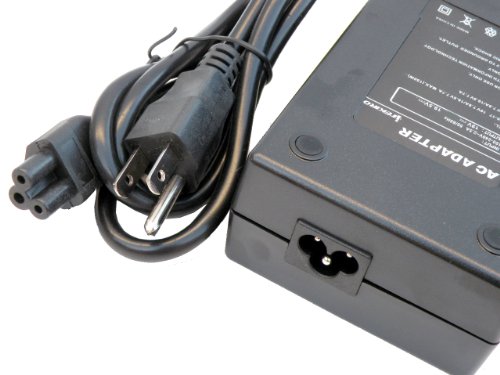
The power brick is pretty large. It’s 150W, just like the Razer Blade’s, however is much bigger. The power bricks are interchangeable though, so if you really want that smaller brick, you could always buy the Razer Blade version. It will cost you though.
Lights and Indicators
Something MSI is good at is letting you know the status of your machine at a glance. Instead of just software indicators(which they also have), the GS60 has seven indicator lights in the front. From the left, there’s sleep, HDD, Num lock, caps lock, Bluetooth, wifi and battery(charging). Sorry, no scroll lock folks. J The good thing is they chose a deep blue color, so the lights don’t stick out like a sore thumb. They also aren’t too bright, so the pulsating blue sleep light won’t scare you in the middle of the night like the first night you bought your Wii.
The power button also glows blue when you turn on the laptop, but it has a double feature to it. It will actually turn orange when the dedicated GPU is in use. At first I thought it was pretty ugly, mainly because of the orange color they chose. After a week, though, I loved it and here’s why: ever use a laptop with switchable graphics on battery and inadvertently kill your battery for little or no reason? It’s likely your GPU was on and in use and you didn’t know it(or have a way to prove it). Now it’s clear as day when your GPU is on. And thanks to Nvidia default settings, Steam being open will turn on the GPU, so that is something that I immediately saw the orange light on for and went right into Nvida settings to force it to use integrated graphics instead.

Price and availability
The 970M model I have is priced at $1999 USD and I’ve bought it from Newegg. The 870M model is now discontinued, so you’ll have to grab one quick before stores sell out. I’ve seen steep discounts on most stores for the 870M version and they’ll probably go fast. Follow this link for more details.
As far as configurations go, there are dozens of them and most are available at multiple stores.
Final thoughts
Overall, I’m extremely pleased with the laptop, especially the 970M version. The GS60 Pro offers pretty much the best that can be offered by an Ultraportable to date. And they do it without skimping on the screen and keyboard quality. The trackpad could be a little better but it certainly isn’t keeping me from liking this machine. I’ve only spent a short time with the 970M version but I’m sure it will fill in the gaps I think was lacking in the previous version.
The 870M by itself is still very nice but the heat generation makes it a little less desirable. Still, if you can get one at a clearance sale, I would say go for it because the value is definitely there. I think most people can certainly tolerate the extra heat, and it’s not like the performance is bad or anything.
Otherwise, if you have the extra money, the 970M is totally worth its sticker price. You’ll be getting a light, thin gaming ultrabook, with the best possible GPU and plenty of hard drive space and room for upgrades. You’re also getting a great keyboard and a great screen. There’s no other choice out there with all of that.
