Selasa, 02 Desember 2014

Asus Zenbook NX500

Image result for Asus Zenbook NX500
A powerful notebook does not have to be bulky and loud if it can also be dignified, subtle and quiet. Why pretentious and not understated? Asus thinks it knows what wealthy customers want and creates an Ultrabook that combines performance and elegance in a simple yet sophisticated chassis. Can this symbiosis really set new records in every category, just as Asus promises?

Asus is pretty ambitious with its advertisement and describes its Zenbook NX500JK as a symbiosis of beauty and power. No compromise in terms of performance, GPU with gaming capabilities, the fastest SSD, and all that in a timeless and elegant case. Furthermore, you get a 4K Visual Master display, which offers the highest quality for professionals and gamers with accurate colors and wide viewing angles.
Our test will show what really lies behind the advertisement on the product website. Asus has priced its NX500JK at 2,200 Euros (~$2739). Is the ambitious price justified for a Core i7-4712HQ, a GeForce GTX 850M, and a 256 GB SSD? Certainly not for the components alone, the rivals offer that for much less. The real advantages of the 15-inch Zenbook are the quality of the case as well as the display. The case is an aluminum unibody similar to the MacBook Pro 15, and the display is a 4K touch panel with rich colors and wide viewing angles. 
The rivals for the NX500JK only include the best of the best. For example, the Apple MacBook Pro 15 Retina (rating 89%), even though it is not really up to date anymore with the GT 750M and 3K resolution. Then there is the Dell XPS 15 (3K), which also uses a GT 750M.
The following competitors are completely different in terms of design and hardware equipment. Lenovo Y50 (GTX 860M) and MSI GS60 Ghost (GTX 870M) are slim gaming notebooks with an aggressive styling, but they cannot compete with the stability and sophistication of the NX500. Because of the high resolutions of 3840x2160 pixels and 2880x1620 pixels we still list them as rivals for our 15-inch Zenbook.
Case
Asus continues the tradition of unibody Zenbooks, and creates a new base unit that was milled from a single piece of metal. This is immediately apparent when you look at the very high stability of the case: Despite the large footprint of the 15-inch device, the base unit cannot be twisted at all. Even the display cover is outstanding with its high torsion-resistance. The cover has a conical brushed finish, which results in a nice reflection around the logo. The back cover is smooth, but it still has a good grip. The metallic and cool surfaces create a very high quality impression around the whole case.


This impression is supported not only by the finish, but the smallest details. A rubber stripe surrounds the panel, and is flush with the base unit when the NX500 is closed. Two magnets underneath the front edge of the palm rest secure the lid. This, combined with the weight of the lid, creates a tight connection, but one hand is still sufficient to open the display due to the heavy base unit. The top display edge is slightly protruding, so it is easier to open. Other details are the subtle status LEDs for the battery charge, and the system status at the front. This means you can also see the lights when the lid is closed. There is no status LED for the storage, but this is not really necessary with the super fast SSDs. The working environment is entirely free of buttons or LEDs.
The all-metal case does have the disadvantage of a pretty heavy weight. 2.25 kilograms (~5 lb) is not too much for a 15-inch notebook, but it is for an ultrabook. The MacBook Pro Retina 15 Late 2013 only weighs two kilograms (~4.4 lb), the same as the Dell XPS 15 (9530, Late 2013). However, the rivals do not differ in terms of thickness: MacBook Pro Retina 15, Dell XPS 15 and Zenbook NX500 are the slimmest 15-inch ultrabooks on the market. Currently, customers do not get slimmer constructions, at least not with this kind of performance.
Image result for Asus Zenbook NX500 case
Integrated battery? Not only slim notebooks have been following the trend to integrate the battery into the chassis for a while now. Replacing a defective or an old unit is difficult (tricky to open, risk of damages) or even impossible (battery sealed, typical of Apple). The Zenbook also looks like this at first, but fortunately this is not a problem: Like the small Zenbooks, for example the UX303LN, the aluminum bottom cover can be easily removed after you loosen some screws. After that you can replace the battery as well as some other components.
The internal layout also reveals why the NX500 is so sturdy: There are, for instance, two spacers underneath the keyboard that support the hollow space between the bottom cover and the palm rest. Unlike many notebooks with an aluminum finish that only put an aluminum plate on top of the plastic frame, the NX500 is actually made of a single piece of metal. The keys break through the plate towards the top and the motherboard is mounted from below.
Connectivity
Asus has equipped its NX500 with the usual ports, the only speciality is the DisplayPort, which is not often used in a consumer notebook, in this case as a mini version. All the ports are in the rear area of the sides, which prevents issues with the cables and collisions with an external mouse for the most part. Older ports like VGA and RJ45 Ethernet have no place in the NX500 due to their dimensions. Users can still use network cables with the USB to Ethernet dongle (ASIX AX88772b) if necessary, but the transfer speed is limited to 100 Mbps.
Apart from Windows 8.1 64-bit, some service applications (Live Update) and tools (Audio Wizard, Smart Gesture), the manufacturer does not install any relevant full versions. In our opinion CyberLink's Media Story is pretty useless. The trial versions of Office and McAfee Live Safe are obviously preloaded as well.

Communication

The NX500 uses a Broadcom 802.11ac adaptor for wireless connections with our WLAN router (Fritz!Box). In theory, Wireless-ac doubles the transfer rates compared to Wireless-n, since it uses two channels. The Broadcom chip does not have a very good signal quality. We can still open notebookcheck.com at a short distance (15 meters; ~49 ft, outside the building, 2 bars), but the notebook loses the signal on our way to the 45 meters (~148 ft) measuring point. Many rivals manage better results with 1-2 bars at the 45 meters (~148 ft) point. One example would be the Satellite P50t (ac-Wi-Fi). The sibling Zenbook UX303LN (ac) did not get a signal at 45 meters, either. The aluminum display cover could be interfering with the WLAN antennas since they are inside the cover.

Accessories

The accessories include a 130-Watt power adaptor, a USB to Ethernet dongle, a zip tie, the warranty information as well as a bag.
Image result for Asus Zenbook NX500 adapter

Maintenance

The bottom cover of the NX500 is secured with small Torx screws, two of them are underneath the rear support feet. Loosen them, and lift the bottom cover to gain easy access to: WLAN module (mSATA), SSD (M.2), a free M.2 slot (for a second SSD), fans (for cleaning), CMOS battery, memory module (144 pins) and obviously the battery. 

Webcam

The 720p webcam does not really suit the expensive NX500. Indoor and outdoor pictures suffer from strong picture noise, and videos have clearly visible ghost effects. Colors are pale and unnaturally flashy.

Warranty

The standard warranty period is 24 months. Asus collects the notebook and returns it to you for free (Collect & Return service). Warranty extensions are only available for products with a one-year manufacturer's warranty.

Keyboard

The keyboard illumination is unfortunately a blessing and a curse at the same time. Asus uses a version where not only the key margins are illuminated, but also the lettering. This makes it tricky to see the lettering under unfavorable lighting conditions, which also means you have to deactivate the illumination in these scenarios. This is mainly an issue for users who cannot touch type and need to see the keys. 
Otherwise, the input leaves a good, but not a perfect impression. The average travel with the crisp feedback results in a rather soft and quiet stroke. This means you can type very quietly on the Zenbook. One thing we do not really like is the missing conical curvature of the keys as well as the smooth surface. Both can lead to a slipping of the fingers over the keys. Typing is pretty fast, but the number of typos is comparatively high and the mechanical feedback is not very enjoyable. The working environment seems to be completely flat, but this is not the case. The keys sit in a slight depression. They have to, otherwise they would collide with the panel surface when the lid is closed.

Touchpad

The ClickPad with a diagonal size of 12.5 centimeters (~5 in) has a very smooth surface, so there is hardly any resistance for the fingers. The pad is one large single button, left and right clicks can be executed with clicks on the corresponding position on the lower left or right corner, respectively. The travel is pretty limited, which does not result in a good feedback. The clicking noise is also quite loud, which does not really match the quiet keyboard.
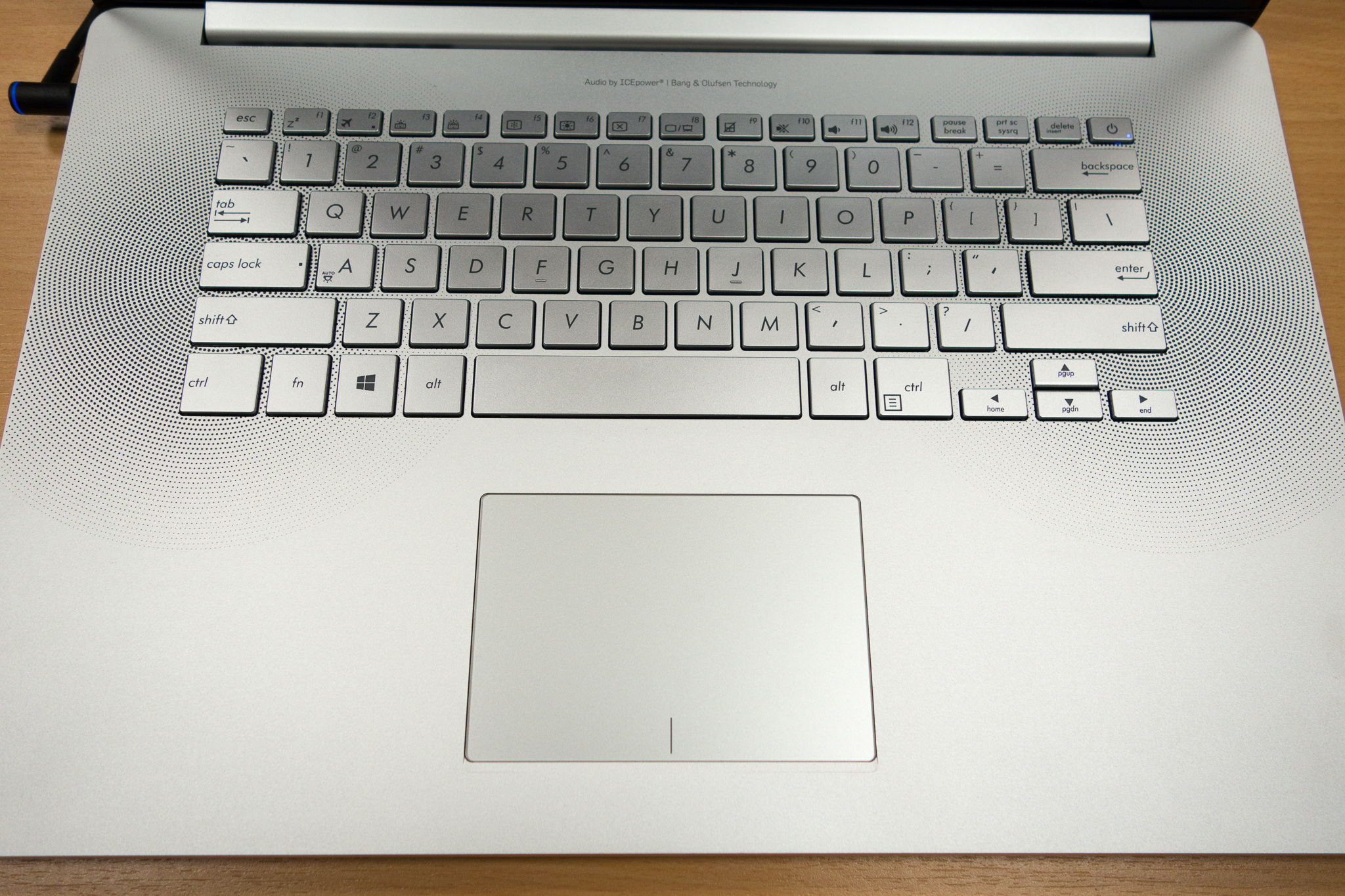
Image result for Asus Zenbook NX500 touchpad
Apart from the feedback, you can work quickly and pretty precisely with the ClickPad. However, the input supports only a few multi-touch gestures, for example, the zoom with two fingers or scrolling up and down. Personalizations, like the deactivation of certain gestures, were not possible in the mouse driver.

Touchpanel

The display is a capacitive 10 fingers multi-touch panel with very good gliding capabilities but also a glossy surface. The firm hinges as well as the limited opening angle of around 135 degrees ensure a convenient operation with the fingers since the display does hardly bounce. The touch panel is sensitive up into the peripheral areas. As long as the finger still has contact with the panel itself, it can already rest on the black frame and still move a window.
Display
Asus equips its 15.6-inch notebook with a striking 16:9 panel: The LQ156D1JX02 (manufacturer unknown) has a resolution of 3840x2160 pixels (pixel density 282 ppi). It seems to be the same panel that we know from the Toshiba Satellite P50t-B-10T (LQ156D1JX01), which also has similar measurements. The display is also a capacitive 10 fingers touch display; the NX500 is only available with the 4K touch panel.
The center brightness is 309 cd/m² and the brightness distribution is even. We cannot determine any screen bleeding, not even at the edges with a black picture and the highest luminance (picture right column). This is a very good result for the NX500 and the rivals are just slightly brighter (see table).
Image result for Asus Zenbook NX500 display
The contrast of 1,188:1 is very high, even though this is just an average result within the comparison. Dell's XPS 15 has the highest contrast, Apple's MBP Retina 15 is slightly worse. However, we are already talking about contrasts where the normal user cannot see the difference anyway. Only lower contrasts like 566:1 (IdeaPad Y50-70) are visible in a comparison.
The IPS panel already has a color profile ex-works. Asus promises that every device is calibrated to compensate nuances of the display quality. We assume that this is not the case. The reason: The same panel in the Toshiba Satellite P50t-B-10T manages much lower DeltaE values for the grayscale and colors (Toshiba factory calibration). We performed our own calibration for the NX500 panel and were able to reduce the DeltaE from 4.7 and 3.3 to 3.5 and 0.85, respectively. We suspect every NX500 gets the same profile, which results in good, but not the perfect colors that were promised. We can see the best colors on the display of the MacBook Pro Retina 15 as well as the Toshiba Satellite P50t.
The i1 profiler determines that the sRGB colors are not completely displayed (90% coverage), but they are at least very natural. Only the XPS 15 manages a full coverage among the rivals. AdobeRGB (1998) – and this is really rare – is covered by 83%, not even the Toshiba Satellite P50t can keep up with that. Not many devices are better, only workstations like the HP ZBook 17 (E9X11AA-ABA) with a matte Full HD display (display rating 92%) are able to cover most part of AdobeRGB and the full sRGB color space (Dreamcolor display).
The panel does not leave a great impression outdoors, which is primarily caused by the glossy surface. The brightness on battery power is only dimmed when the energy-saving feature in the Intel driver is active. We deactivated it and were able to take two outdoor pictures with the full 309 cd/m².
Typical of an IPS panel, the viewing angles are excellent. It does not matter from which side you look at the display, the contrast remains stable and colors do not distort even with extreme angles from the side.
Performance
Asus combines a standard voltage Core i7 with a fast Samsung SSD from the XP941-series. Combined with the performance of the dedicated GTX 850M and the integrated HD Graphics 4600, respectively, we get a very high system performance. Games are quickly copied, applications rapidly installed, and the loading times are phenomenally short. This means the NX500 is suited for professionals (workstation with 4K display, wide gamut) and demanding multimedia users (sound, 4K, system performance) at the same time. With the powerful CPU as well as the upgradeability of the memory, even demanding and performance-oriented customers should be satisfied for at least four years. Let us look at the details.
Processor


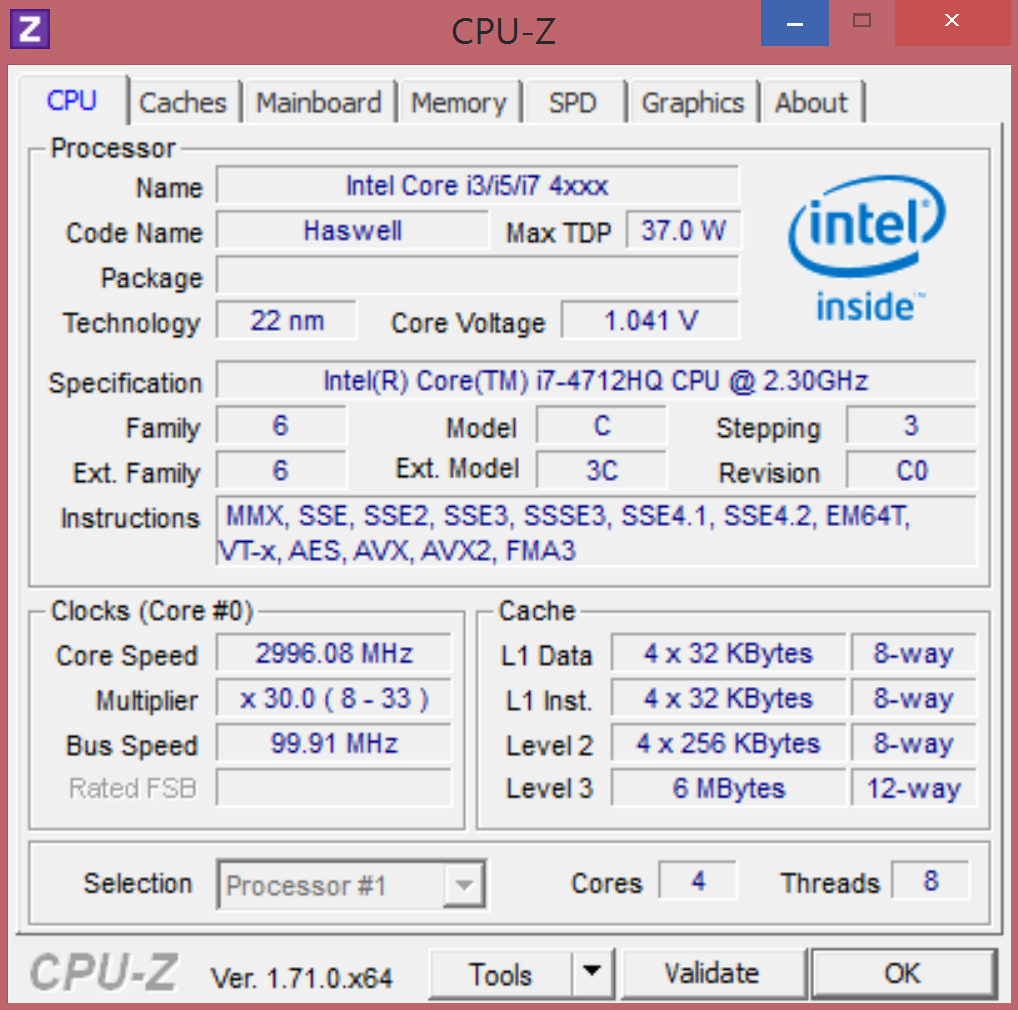
The Core i7-4712HQ (2.3 GHz) is a mobile high-end quad-core with a TDP of 37 Watts. Dell's XPS 15 is also equipped with an HQ and a TDP of 37 Watts, Apple uses a 47 Watts model (4850HQ). The Turbo can reach up to 3.3 GHz (single-core), even though we can hardly see this frequency. The CPU usually runs with 2.3 GHz under load, but small spikes to 2.4 or 2.5 GHz are possible.
We observed the thermal relation: When we start Cinebench R15 Multi on a cold NX500, we can see up to 3.0 GHz for a short time before it levels off between 2.5 and 2.6 GHz after a couple of seconds. The SoC temperature is still way below 70 °C (~158 °F). Continuous load results in a temperature increase to 70 °C (~158 °F), and the clock drops to 2.3-2.4 GHz. Cinebench R15 Multi determines 499 points for the cold device, but only 470 points for a warm Zenbook.
The Turbo Boost is heavily affected by the temperatures, which leads to fluctuating results in our tests. In the end, we have to use the results of the warm device, where the Turbo is not used at all, or just has a very small impact with 2.4 or 2.5 GHz.
This is also the reason that the scores in the Cinebench R11.5 and R15 Multi tests are 20 to 30% lower compared to the rivals from Apple and Dell. The single-core performance falls behind by 5 to 16%. One exception is the HP Envy 15-k010ng with its ULV SoC. The performance can be maintained on battery power, the R15 benchmark almost shows identical results. There is no Turbo On/Off option in the BIOS (F2).

System Performance

The application performance, determined by PCMark 7 and 8, is on a very high level, but 7 to 16% behind the Apple MBP Retina 15 and XPS 15. The reason has to be the lower CPU performance since the problem is definitely not the SSD, as we will see in the next section. We also listed the Storage score for the main rivals, which is phenomenal in the case of the MBP Retina 15. An impression that is not consistent with the storage rating.

Storage Devices

The Samsung SSD from the XP941-series (here 256 GB) is an M.2 module at the 16 GB/s PCIe 2.0 x4 interface. This particular model costs 250 Euros (~$311). The XP941 models are usually used for the business market since according to a review from pcgameshardware.de the IOPS are very consistent. Typical consumer SSDs like the SSD 840 Pro and Vector 150 on the other hand, show a fluctuating performance. This means the XP941 can deliver the performance very reliably all the time. The manufacturer chose a high-end model, which is already apparent from the price. M.2 modules with 256 GB start at a retail price of 110 Euros (~137), but Asus fortunately not decided to save money on this component. A second module can be installed in the free M.2 slot; Asus also offers a 512 GB version of its NX500.
The individual measurements of CrystalDiskMark and AS SSD show that the XP941 is much faster than the Samsung SM841, PM851, Apple SSD and Kingston SSD in the rivals. Sequential reads of 1,092 MB/s in particular are a huge result. However, the transfer rates (read and write) with small files (4k) are much more important during everyday use. These are very good as well, even though they are not always the best results. All in all, our table shows a performance advantage of around 30% compared to the SSDs in the rivals.

Graphics

We have already reviewed the GeForce GTX 850M a couple of times, both with GDDR5 as well as DDR3 video memory. Asus uses 2 GB GDDR5 and GPU-Z shows a core clock of 863 MHz and a memory clock of 1,253 MHz (128-bit interface). In addition, there is a manufacturer-specific Turbo, which leads to 953 MHz and 2,500 MHz (core/memory), respectively, for our review unit. However, it can only be utilized for peak load (GPU: 70 °C; ~158 °F). Continuous GPU load with FurMark (80 °C; ~176 °F) results in a drop of the core clock to 719 MHz.

It seems that the GPU Turbo is not used during gaming either, so the NX500 manages less fps than comparable devices with the GDDR5 GTX 850M in general. We listed the V3-772G for this reason, which manages up to 12% more in the synthetic benchmarks, but the Zenbook is clearly faster than the rivals with a GT 750M. The Physics score shows that the review unit falls behind comparable processors by 22 to 28%, which could be caused by the limited Turbo utilization.
The Intel HD Graphics 4600 in an Optimus configuration handles the graphics in less demanding situations. But you can also choose to use it for all computing tasks or on battery power. It runs with the usual clocks between 1,100-1,150 MHz (dual-channel), and manages 27.65 fps in Cinebench R11.5 Shading (GTX: 50.2 fps), for example. 3DMark Cloud Gate determines 5,744 (12,781), 5,938 (22,320), 5,158 (5,121) points (Standard, Graphics, Physics score) for the HD 4600. The results of the GTX 850M are in the brackets.

Gaming Performance

The NX500 is faster than its rivals in the gaming section, but the advantage is only a result of their GT 750M GPUs and certainly the current GeForce driver 344.75. The Aspire V 15 Nitro with its GTX 860M is slightly faster. Once again we have listed the V3-772G with the identical GPU (GDDR5) and can see 10 to 32% higher frame rates, despite the older driver 332.35. It seems that Asus traded a part of the performance for better emissions, the core cannot use its Turbo potential. We also checked the GPU Turbo with Dishonored and determined, similar to GPU load, 650 up to 700 MHz.

System Noise

Asus promises to restrain noise levels, despite the good performance. An annoying fan would also be an unacceptable problem for a Zenbook. The manufacturer uses a dual-fan solution, where the CPU and GPU are cooled with one heat pipe. This means the other fan can help with the heat from the CPU when the GPU is currently inactive (deactivated by Optimus), for instance. The fans never stop spinning, not even after hours of idling or on battery power. They create a very constant murmur, which can just be measured, but cannot be heard in normal environments.
The cooling solution dissipates the heat at the back of the case towards the big hinge. Interesting are the air intakes: They are not at the bottom, as there are no openings on the sides of the bottom. They are not integrated into the keyboard, either, but they are on the left and right side next to the keyboard and shaped like a rectangle. They are pretty inconspicuously integrated into the working environment. We cannot yet say whether Asus created a dust collector that has to be cleaned from time to time.
The speed of the fans is pretty moderate, which means there is no annoying resonance, but the changes are slow and very consistent. A selected rpm level is maintained for some time before the speed is once again reduced. Games and average workloads result in 40 dB(A), high load for the CPU and GPU in 44 dB(A). The rivals are on par.

Temperature

Depending on the load, the heat is concentrated in the area above the keyboard, both at the top and the bottom. The other areas hardly show a difference between load and idle, where we can mainly find the speakers, the large battery, the memory and the M.2 SSD. The components with high cooling requirements, the GTX graphics and the CPU, are aligned with the fans in the top third of the base unit. This is also the area with hot spots under load, even though they are still moderate with up to 45 °C (~113 °F). A comparison shows that the Dell XPS 15 is the warmest device with local hot spots of up to 65 °C (~149 °F). Overall, we can say that the NX500 has a pretty even temperature distribution across the metal surfaces, so it should not be a problem to use the notebook on your lap.
Our stress test does not only provoke the highest power consumption, but also the highest temperatures. We use the test to check the maximum temperatures of the SoC and the GPU, and how the cooling solutions handles them. We have already mentioned the conservative and rare Turbo of the Core i7-4712HQ, and the situation is similar to the stress test with Prime95 and FurMark, where the CPU constantly runs with its base frequency of 2.3 GHz. The GTX 850M on the other hand, drops to 588 MHz. It seems that Asus chose conservative temperature limits, HWinfo just indicates 78 °C (~172 °F) for the CPU and 76 °C (~169 °F) for the GPU. Lower case temperatures and less fan noise were more important for Asus than the highest possible performance.
The stress test on battery power immediately results in a CPU clock of 800 MHz, so the GPU has enough thermal headroom for a clock of up to 810 MHz. But even this value is below the standard core clock of 876 MHz.

Speakers


The two speakers are on the right and left side of the keyboard. The openings (round) should not be confused with the air intakes for the cooling (rectangular), which are in the same area. The speakers are open towards the bottom (see motherboard pictures) and have a cloth cover. They have a comparatively large soundbox that extends into the lower part of the palm rest.
The opening in the working environment can be a magnet for dirt (the opening is in direct eye-sight), but the position is also perfect to transport the sound towards the user. The balanced sound confirms this, and offers everything from subtle bass (palm rest even vibrates) up to fine and differentiated high tones. The performance without an external subwoofer (subwoofer + notebook: Asus N750JKN550JK) does not have to hide behind the competition, especially since this is a very slim notebook.
The Audio Wizard allows quick switching between presets for music, movies, gaming, recordings and voice. There are actually sound differences, the movie mode, for example, produces the strongest bass. Bass and treble can also be adjusted individually in the Advanced menu.
The maximum volume is not extremely high, but it seems to be well adjusted to the performance of the small speakers. A higher volume would probably result in unpleasant distortions, which are completely avoided with this limitation. External speakers can only be attached via the combined stereo jack. The output via HDMI or Bluetooth would obviously work as well.
Our test recording with the integrated stereo microphone created a low-noise and clean result, where ambient noise is filtered. Behind the notebook was an audible hard drive, but we could not hear it in our recordings at a distance of one and two meters (~3 - 6.5 ft). There was also no problem to walk around in the room, the voice was a bit quieter but just as clear. The microphones are located at the center of the front of the Zenbook.

Power Consumption

The 130-Watt power adaptor is the perfect match for the NX500, but not only because of the polished design. We can measure a power consumption of up to 112 Watts during our stress test (load for CPU and GPU) and the simultaneous charging of the battery. This value drops to 82 Watts when the battery is full. The load consumption seems to be slightly low in comparison with the rivals, but the reason is the limited utilization of the CPU Turbo with high temperatures. Even the Asus N550JK with Core i5 and GTX 850M pulls 108 Watts from the socket under load. The XPS 15 needs 115 Watts. One exception with a lower result, is once again the HP Envy 15 with its ULV SoC.
The high consumption while idling when the battery is not charged, is unusual. The best device in this scenario is the Aspire V 15 Nitro, which just consumes 7 Watts (but 21 Watts maximum idle). Does this have a negative effect on the battery runtimes?

Battery Runtime


The NX500 is supposed to manage two weeks of standby with one charge of the 96 Wh battery. We did not perform this test, but our measurements during standby of 0.4 Watts would result in a standby time of just ten days. But we do not want to be too fussy, and look at the more realistic WLAN test, which opens websites via script with an adjusted display brightness of 150 cd/m² (dim by 5 steps) and the energy-saving mode (no keyboard illumination). As usual, we deactivated the display energy-saving mode in the Intel driver, otherwise the brightness sensor would prevent the fixed luminance. Despite the powerful battery, the test "only" determines 5:43 hours, our alternative WLAN test (beta status) with the same settings is already finished after 4:51 hours. Both the Apple MBP Retina 15 (84 Wh) and Dell XPS 15 (91 Wh) are much better. ULV equipped systems, in this comparison only the HP Envy 15-k010ng, are not necessarily better. The HP has a lower power consumption, but the battery capacity is also much lower at 41 Wh.
The NX500 does not manage great results under load, either, which is not really surprising with almost 80 Watts in 3DMark 2006. It is still strange that the Dell XPS 15 with the same capacity, and a similar standard voltage quad-core runs longer (+23%). The Dell even manages 14 hours in the Reader's Test (idle), while our Zenbook has to be recharged after 6:34 hours. Another run of the Reader's Test was just slightly better with almost seven hours. A quick look at the lowest idle consumption at least shows one reason for the difference: NX500 14 Watts, XPS 15 10 Watts.

We have waited a long time for this, now Asus managed it just in time for the holiday season. The luxury notebook Zenbook NX500JK is in stores and we put it through our test suite. Let us talk about Asus' promises for the product.
Slim, compact and timeless. The 25 mm slim chassis is solid, the material gives a very sophisticated impression and the understated design simply looks good. Point for Asus.
Rich, vivid and accurate color. We determined an sRGB coverage of 92%. sRGB is equivalent to around 72% NTSC, so the colors should exceed the sRGB reference significantly. This is also the case with 80% AdobeRGB (1998). If you are not too meticulous, then you could speak about a wide gamut display for the NX500. Point for Asus.
Details and perfect viewing angles. If you want the extreme 4K resolution, then you get it here in the combination of perfect viewing angles, high contrast and high luminance. Whether 4K makes sense for games or applications is another, highly arguable topic. Point for Asus.
Video calls in crystal clarity. The webcam is a big disappointment, the microphone on the other hand is great. Crystal clear are only the recordings of the microphone, webcam pictures and videos are useless, even in daylight. No point for Asus.
Backlit keyboard for the ultimate typing experience. We have already reviewed worse input devices, but the NX500 cannot compete with the mechanical typing experience and the great handling of ThinkPad keyboards. The transparent illumination is also far from ideal for the work in daylight. Keys are hard to recognize with the illumination, so it has to be deactivated. No point for Asus.
Audio Perfection. Asus calls it Sonic Master Premium, and the crystal clear, balanced sound, which is even supported by bass, is a pleasure to the ears. Point for Asus.
Gaming-grade graphics power. The GTX 850M with GDDR5 memory can actually display current titles, many games, even in Full HD and with the highest details. Gaming in 4K on the other hand is hardly possible, at least with current games or titles from the last couple of years. The NX500 can outstrip its direct rivals with the GT 750M (XPS 15, MBP 15 Retina), but it falls behind compared to a similarly equipped GTX 850M device because of the limited Turbo utilization of the GPU (and CPU). However, this is mainly an issue for performance geeks that need every frame. Still, no point for Asus.
Experience true power. The Samsung SSD is very fast and can surpass the storage solutions of the rivals. Unfortunately, the CPU cannot keep up, the Turbo utilization is minimal when the device is warm, and usually levels off around the nominal clock of 2.3 GHz. No point for Asus, much less expensive devices can utilize the maximum performance of the processor.
Powerful but cool. One man's sorrow is another man's joy. The conservative thermal control does limit the performance, but also results in a low system noise and a pretty cool case. Point for Asus.
Non-stop computing. The runtime of almost six hours in the WLAN test is much shorter compared to the main rivals MBP Retina 15 and XPS 15, respectively. Then there is the glossy panel as well as the high weight of the notebook (2.25 kg; ~5 lb), and the power adaptor (436 grams; ~15.4 ounces). No point for Asus.
Our mini rating shows 5 out of 10 possible points for the Zenbook NX500JK. If you are striving for perfection, you will be compared with the best devices on the market. The Zenbook can outrank the rivals in many categories. However, the Zenbook is not great in areas where it has to make compromises in terms of performance, ergonomics and mobility. Maximum performance? The marketing department exaggerated quite a bit. We want to say it once again, not only for Asus: It is no disgrace to build a nice, slim, quiet and enduring notebook that cannot run games in the highest resolution. Or do we have to blame the customers and the press, respectively, because they always want new performance records?
We cannot clarify this question at this point. The rivals Apple MBP Retina 15 (89%) and Dell XPS 15 (88%) are still very good options, which is apparent when you look at the final rating. Our Zenbook NX500 gets 86%, so the customer still has the agony of choice. 
If you like the Zenbook, but only want to spend up to 1,000 Euros (~$1245), then we can recommend the N550JK (standard voltage, GTX 850M) from the same manufacturer. The aluminum working environment looks very similar, just like the hardware. As well as Full HD, you also get an external subwoofer

Rabu, 19 November 2014

Acer Aspire V7-582P-6673

Image result for Acer Aspire V7-582P-6673

Acer’s new V-series notebooks span a wide range of prices and specs, starting with the ultra-affordable Aspire V5-121-0452 (just $299) and topping out at the $1,049 Aspire V7-582PG-6421. Both the V5 and V7 classifications (in contrast to the more traditional V3 models) focus on thin-and-light designs meant for a variety of budgets, and the notebooks range in size from 11.6-inch all the way to 15.6-inch. While the top-end V7 features a 1080p IPS touchscreen, dedicated 2GB nVidia GPU, and double the storage space, our review unit—the V7-582P-6673—steps it down to a standard 720p panel with integrated graphics and saves $200 in the process.
Still, it’s no slouch in the context of modern mainstream Ultrabooks. Sporting an Intel Core i5-4200U Haswell CPU, 8 GB of DDR3 RAM, and integrated Intel HD Graphics 4400, it’s hardly a low-end proposition. Plus, battery life (thanks in no small part to the Haswell CPU) promises some surprises. But at $849, how well does the full package stack up against its competitors? Let’s get down to the facts.
Case

The Aspire V7-582P (available in four different colors) is constructed from a combination of brushed aluminum and plastic, though by appearance alone the like-colored materials tend to blend together quite seamlessly. For the most part, the frame of the notebook is plastic, while the display lid and palm rest (including the keyboard surround) are lined with metal. Nevertheless, the notebook initially feels solid and sturdy, with very little flex on the base unit apart from response to heavy pressure in the center. This is in spite of its fairly light 2.22 kg (4.9 lbs) weight, which is good for a 15.6-inch notebook, but still substantial in the world of Ultrabooks. The material on the bottom of the machine, meanwhile, features a soft-touch finish and feels rigid enough to last. Unlike the rest of the silver-colored body, it’s entirely black, and it extends halfway up along the sides of the notebook to meet with the grey plastic trim.
Image result for Acer Aspire V7-582P-6673 case
The weakest point is the display lid, which—while sufficiently thick—still feels rather flimsy and fragile. Pressure on the back of the lid produces significant LCD distortions, and hard taps on the screen result in a rippling effect near the left and right edges of the panel. The lid itself seems to provide acceptable torsion resistance, but is a far cry from the much more durable offerings of many high-end Ultrabooks and business models. On a related note, the hinges—while certainly firm enough to hold the angle of the screen constant—can’t prevent the screen from suffering a slight wobble while the touchscreen is in use. It’s a minor problem, but one which afflicts many larger touchscreen notebooks.
Overall, the workmanship is very good; apart from a few niggles, there aren’t many other gripes about the design—though we'll list our last few: any slight amount of pressure on the left palmrest of our review unit resulted in a faint clicking sound as the parts compressed slightly, which was annoying while typing at times. Also, the placement of the power button along the left edge of the notebook hardly seems ideal, and maintenance is a bit inconvenient. As is the case with many Ultrabooks, the battery is internal, meaning that replacement would require removal of the entire bottom of the notebook (and a couple dozen screws). A “battery pull” button is fortunately provided on the bottom of the base unit (recessed into the case).
Connectivity
The V7 features a commendable array of ports for a 15-inch Ultrabook, with two video output options (HDMI and mini-DisplayPort), Gigabit Ethernet, and three total USB ports. Unfortunately, only one of the USB ports is 3.0, which is a bit disappointing. Still, for a consumer-grade 15-inch Ultrabook, this isn’t a bad selection.
What’s not as great is their placement. Most of the ports are banished to the back of the unit, forcing the user to reach around to them to connect devices—or, most likely, to get up and glance at the back of the unit to find the correct port. They’re also crammed together, such that connecting a mini-DisplayPort cable and a larger USB device, for instance, may be a problem. At least it improves upon the Aspire M5-481PT-6644’s situation, however, which saw all of its ports in that location; the V7 features two of its USB 2.0 ports on the sides of its body (one on each side near the back).

Communication

The Aspire V7’s Intel Dual Band Wireless-N 7260 2x2 802.11n WLAN adapter provides for speeds up to 300 Mbps (over dual streams), and it performed well in our time with the unit, securing good reception at reasonable distances from the router. Also available is a Realtek Gigabit Ethernet port. The last member of the wireless trio is Bluetooth 4.0, which is integrated into the Intel WLAN card. Finally, an HD webcam rests above the screen, and throughout our brief tests, its video quality seemed adequate.

Accessories and Warranty

As with Acer’s other mainstream consumer notebooks, there are no special accessories in sight for the Aspire V7. In the box you’ll find a small power adapter (weighing in at just under 0.35 kg) and nothing else. The notebook ships with a 1-year parts and labor warranty (mail-in or bring-in).

Keyboard

The Acer Aspire V7’s full-sized Chiclet-style keyboardfeatures a stylish, understated appearance. The keys are entirely flat and smooth, with a soft-touch finish that isn’t unlike the one on the bottom of the notebook. They’re spaced comfortably so as to reduce typing errors, and we had few problems finding our bearings while using it. As with many 15.6-inch notebooks, there’s a separate number pad included as well. Most of the keys are also sufficiently-sized.
The typing experience, meanwhile, isn’t quite as flawless. The keys unfortunately feature a short and unsatisfying sense of travel, which renders rapid typing a bit less comfortable. The crisp stop and relative ease of stroke, however, rescue it from what would otherwise be sheer mediocrity.
Lastly, the keyboard is backlit, which is always a plus. While it’s nice, however, there is only one brightness setting, with no supplemental ambient light sensor to help automate its operation.

Touchpad

On the other hand, we have few complaints about the V7’s very good Synaptics clickpad. Not only is it easily large enough to span the breadth of the screen (even on slower pointer speed settings), it also features a comfortable smooth finish that provides for easy finger gliding across the surface—though things do get a bit sticky when any humidity is introduced. The pointer operation is accurate and consistent. Multitouch gestures also went smoothly, with the full gamut of Synaptics options available in the driver software. The only significant complaint we have is a common one: we found that the integrated buttons require a bit too much effort to depress, which renders them much less convenient than simply tapping to click instead.

Touchscreen

Seeing as it’s a new requirement of the revised Intel Ultrabook specifications(something which has provoked the ire of many fans of matte notebook screens), the Aspire V7 also features a 10-point multi-touch screen. We’re happy to report that it serves as an excellent accompaniment to the other input methods, with quick response, accurate operation, and good handling of multi-touch gestures. We tested input with all ten fingers simultaneously and encountered no problems.
Display
Acer Aspire V7 models are available in 14-inch and 15.6-inch varieties with either 720p or 1080p display panels, with models featuring the latter higher-resolution panel costing upwards of $1,000. Our review unit was the $849 Acer Aspire V7-582P-6673, which includes a 15.6-inch 720p (1366x768) TN LED glossy display panel. That adds up to just 100.5 PPI, which is thoroughly unimpressive by today’s Ultrabook standards (many modern Ultrabooks post figures above 170 PPI). Likewise, upon first glance, the panel’s brightness, contrast, and colorreproduction all appear subjectively unremarkable and flat. The fact that a much better (1080p IPS) panel is available for $200 above the 582P-6673’s MSRP (see the V7-582PG-6421, which also features dedicated graphics and a larger hard drive) leads us to recommend that buyers think seriously about their needs before committing to this 720p panel.
Our measurements of the panel reaffirm our initial impressions. With an average brightness of just 202 cd/m², the V7 doesn’t have a dim panel, but it’s hardly in the same ballpark as most other Ultrabooks. Meanwhile, its unimpressive contrast ratio of 225:1 doesn’t help matters much (many other Ultrabooks, including those we’ve chosen to compare with in this article, easily achieve above 500:1). At least the brightness distribution is relatively consistent at 92%.
Our color reproduction measurements offer little solace. The V7 manages just 56% sRGB coverage, which is makes it completely unsuitable for any sort of professional photo editing, and results in an overall washed-out appearance. This result can’t compete with that of most other Ultrabooks in its class, which generally opt for much higher-quality panels. Fortunately, the 1080p IPS option on the V7 would most likely quell these issues (though we can’t know for certain until we’ve had the chance to assess one for ourselves).
CalMAN 5 piles on with its revelations of significant DeltaE 2000 deviations across nearly all colors. The average pre-calibration dE2000 of 12.36 tells the story: this is not a notebook meant for color accuracy.
Thanks to its poor contrast, middling brightness, and glossy screen, our Aspire V7 review unit struggled to produce a usable picture outdoors. The situation is manageable in shady areas, but it quickly gets out of hand as soon as any bright sources of light are present, with both reflections and rampant fingerprints taking over.
Finally, viewing angles are acceptable on the horizontal axis, sans the aforementioned reflectivity woes. However (as the presence of a budget TN panel might have insinuated), vertical viewing angles are immediately restrictive. As we’ve mentioned multiple times before, if this is a concern for you, you’d once again be much better served with the 1080p IPS panel instead, as that technology provides for very wide viewing angles with very little distortion.
Performance

The Acer Aspire V7 models are available with a range of CPUs, starting with the least-expensive Ivy Bridge-based 1.8 GHz – 2.7 GHz Intel Core i5-3337U and topping off with the Haswell-based 1.8GHz – 3.0GHz Core i7-4500U CPU. Our review unit came configured with an Intel Core i5-4200U CPU, which is also a Haswell-based chip built with 22 nm manufacturing technology. It features a base clock rate of 1.6 GHz and, with the help of Turbo Boost, can increase to 2.6 GHz when conditions warrant it. All of the CPUs available in the V7 line, including the i5-4200U in our unit, are ultra-low-voltage processors with a TDP of 15 W. This is 2 W below the TDP of comparable Ivy Bridge predecessors.
In terms of system memory, our V7 review unit featured 8GB DDR3-1600 (PC3-12800) RAM. Of this total, 4 GB is soldered permanently to the system board, while the other 4 GB is a replaceable SODIMM. A grand total of 12 GB is possible if the 4 GB module is replaced with an 8 GB SODIMM.
As compared to other notebooks with the same CPU, the Aspire V7-582P-6673 nearly always comes out on top. Our synthetic benchmarks place it up to 5% above the Vaio Duo 13 SVD1321M2E and Vaio Pro 11 SVP121M2EB.G4 in the Super Pi 32m and wPrime 1024m tests, and 3DMark 06 CPU reinforces those results. Meanwhile, Cinebench R11.5 widens the gap even further, with the Vaio Pro 11 falling 11% behind in the xCPU benchmark (in this same test, however, the Vaio Duo 13 scores nearly identically with the V7).
To check whether or not the Aspire V7 could churn out the same level of performance while operating unplugged, we conducted a second run of 3DMark 11 while running on battery power only. The resulting score of 995 suggests that there is no discernible difference in performance under either power state.
Finally, we ran DPC Latency Checker to evaluate the notebook’s propensity for handling real-time audio and video streaming. As shown in the screenshot, we experienced occasional spikes in latency (at seemingly random intervals between 45 and 60 seconds duration). Disabling wireless and other devices did not resolve the problems. Still, the spikes are so irregular that it is unlikely to manifest itself as a major problem in practice.

Processor

The performance of the Intel Core i5-4200U is most comparable to that of the Ivy Bridge Core i5-3317U; that’s in spite of the fact that the 4200U is clocked 100 MHz below the 3317U, and that it features a TDP of 2 W less. The two CPUs nevertheless post nearly-identical results across all benchmarks, which is an encouraging result if you happen to be more interested in battery life than CPU performance gains (which is probably true for most consumers). The bottom line is that the Core i5-4200U should provide more than enough power to satisfy most users while managing power more efficiently than equivalent Ivy Bridge CPUs.

System Performance

To measure overall system performance, we use PCMark. Since its performance is still bottlenecked by a conventional mechanical hard drive, the V7 can’t be expected to compete in these tests with other Ultrabooks that leverage solid-state storage devices only. However, like many other lower-cost Ultrabooks, in order to meet the requirements of Intel’s specification, it still includes a solid-state drive—but for caching rather than dedicated storage. The end result of this approach is quicker access to and loading of frequently-used data and applications.
We performed each of the system performance benchmarks three times to allow the caching mechanism to do its job before recording our scores. In PCMark 7, our score of 3841 is very good overall, breaching the top third of our database and accompanied by other machines that leverage similar technologies beyond the constraints of mechanical-only storage. The same goes for PCMark Vantage(6361), where the overall position falls to merely the upper half. The two Sony Vaio Ultrabooks (the Duo 13 and the Pro 11) that we referenced earlier come out far ahead in these benchmarks thanks to their wholly solid-state storage configurations. In other words, it’s important to remember that, while caching certainly helps, there is no equal to a purely solid-state approach.

Storage Devices

As we touched on above, the V7 leverages a hybrid storage approach that involves a standard mechanical drive supplemented by a solid-state cache drive. The mechanical drive we received in our review unit was a Seagate ST500LT012-9WS142 500 GB 5400 RPM hard drive; this drive was paired with a Kingston SMS151S324G 24 GB SSD (strangely, Acer reports its capacity at 20 GB instead). The Kingston SSD is used to cache frequently-accessed data so that it can be fetched more rapidly upon subsequent retrieval. This caching mechanism is totally transparent to the user.
As for other storage options, not much else is available on the V7 series. The SSD size and function remains the same across all models, whereas the mechanical drive ranges in capacity from 500 GB (such as in our review unit) up to 1 TB—all 5400 RPM models.

GPU Performance

Our Aspire V7 came equipped with the standard integrated GPU for Haswell-based ULV CPUs—namely, Intel HD Graphics 4400. Paired with the Core i5-4200U CPUin our unit, this GPU’s clock speed ranges from 200 to 1000 MHz, and it isn’t likely to handle any serious gaming—though hopefully it can at least best scores from equivalent Ivy Bridge-equipped predecessors.
Fortunately, this seems to be the case. The 3DMark 11 overall score of 964 is a triumph for integrated ULV graphics (and even standard voltage IGPs until now), standing alongside such respectable competition as the AMD Radeon HD 7570M(avg: 932) and the GeForce GT 540M (avg: 993). These scores are far beyond that of even the Intel HD Graphics 4000 standard-voltage GPU results (avg: 604), though they can’t hold a candle to the excellent scores managed by the HD Graphics 5000 machines (avg: 1112). Cinebench R11.5’s OpenGL benchmark offers an even more distilled view of the GPU performance, and here, the 4400 manages a shocking 19.68—a performance (until now) unheard of in ULV integrated graphics territory.
Our gaming benchmark results follow suit. While it would certainly be wiser to upgrade to one of the dedicated graphics models if you’re planning on any moderate to heavy gaming, it’s good to know that even the ULV integrated graphics of our review unit should be able to handle Low settings on most modern titles without too much trouble (and some games, such as the two we tested, on Medium).
As it compares to the competition, the Sony Vaio Duo 13 (which, again, shares the same CPU and GPU) falls within a couple percentage points on nearly all relevant benchmarks, while the Vaio Pro 11 is handily crushed, most likely due to some throttling we encountered while testing it. Overall, we’re impressed with the integrated GPU performance of the Aspire V7-582P-6673.

System Noise

When idle, the Aspire V7 is practically silent, maxing out at 30.9 dB(A) by our measurements. Meanwhile, even loadnoise levels are not terribly bothersome, with a medianrecorded value of 36.6 dB(A) and an overall maximum of45.9 dB(A). Even when the fan reaches this absolute highest RPM, it benefits from a tone that is not disturbing—more whoosh than whistle—and the fact that the vent is rear-mounted helps to direct the noise away from the user as well.

Temperature

In spite of its relative quietness, the V7 also manages reasonable temperatures, even when under load. The hottest part of the notebook was the underside of the base unit, and it still managed a thoroughly reasonable average temperature of 36 °C. The maximum recorded temperature (44.2 °C) was in the upper-left quadrant of the bottom of the notebook (upper-right while the notebook is sitting upright), and while that’s not comfortable while sitting on the lap, it’s hardly worth getting concerned about.

Speakers


Considering the thin profile of the Aspire V7, we werepleasantly surprised to find that its four speakers (all located on the underside of the base unit) churned outmostly clear sound at uncommonly high volumes. Obviously one cannot expect accurate frequency response across the spectrum from such small drivers, but the overall tone of the sound was better than expected. The inclusion of Dolby-developed post-processing software provides additional granular control over application- and task-specific audio enhancements, which include not only a 10-channel graphic equalizer but also a Volume Leveler, Dialogue Enhancer, and Surround Virtualizer.
Battery Life

Perhaps the most interesting story of Intel’s new Haswell line of CPUs is the improvement in battery life that it brings to mobile systems. Such is the story with the Aspire V7, which manages not only performance which is certainly adequate for most users, but also what can only be considered excellent battery life. For our battery tests, we choose Battery Eater Pro coupled with a variety of configuration templates and scenarios. During all tests, all screen and device timeouts are disabled.
Our first battery test is used to estimate maximum battery life. For this test, we set the notebook to the Power Saver power profile, lower brightness to minimum, disable all wireless radios, and launch the Battery Eater Reader’s Test. Here, our Aspire V7 test unit managed 12 hours and 20 minutes of runtime before shutting down.
Next, we shift to the opposite end of the spectrum with an attempt to measure minimum battery life. Here, we configure the notebook to the High Performance power profile, set brightness to maximum, reenable all wireless radios, and perform the Battery Eater Classic Test. Under these conditions, the notebook managed 2 hours and 4 minutes of runtime.
Finally, for a much more realistic approximation of the notebook’s longevity under normal usage conditions, we configure the power profile to Balanced, set brightness to as close to 150 cd/m² as possible, and launch a preconfigured web surfing script developed here at Notebookcheck. The result here was 5 hours and 32 minutes, which is yet again very good.

On the surface, the Acer Aspire V7-582P-6673 adds up to a solid choice: it features great battery life, an excellent touchscreen, surprisingly strong performance, and a reasonably solid build, all for an respectable price point of $849. If nothing else, it’s evidence that the Haswell microarchitecture really was worth the wait: the sheer fact that a ULV-equipped Ultrabook can handle medium settings in some modern games is amazing enough.
However, it features a few glaring drawbacks that overshadow many of its strengths. For starters, it’s hard to look past its thoroughly mediocre display, which not only is heavily reflective in moderately-lit environments, but which fails to impress in just about every other category as well (contrast, color reproduction, and resolution included). Couple that with its relatively bulky form factor (for an Ultrabook) and you begin to wonder why another model wasn’t made available that fills these gaps.
Well, it was: the Acer Aspire V7-582PG-6421, which (for $200 more) will score you a 1080p screen, dedicated graphics, and double the storage space—additions which help to justify the size premium. If you don’t mind the extra cash, this might be a better option—however, it’s unfortunate that some iterations of the notebook aren’t available with Haswell integrated graphics (for sake of power savings) coupled with the 1080p panel option.
Still, if your mind is made up on a 15.6-inch machine, you’re able to look past a subpar screen, and you can live with the keyboard, the Acer Aspire V7-582P-6673 is worth considering.